
This feature turns your academy into a recurring business. It allows you to charge students to renew their certificates when they expire.
Imagine you have a “Food Handling” course whose certificate is only valid for one year by law. With this system, the student receives an automatic notification, pays a fee, and their certificate is renewed for another year—all without you having to lift a finger.
STEP 1: Create the “Renewal Ticket” (In WooCommerce)
Before setting up the course, you need to create the “item” that the student will purchase. Think of it like selling a prepaid phone card.
Go to Products > Add New.
Give it a clear name, for example: “2026 Email Marketing Strategies (one year renewal purchase)“.
Set the price (e.g., $50 USD).
The Magic Field: On the General tab (where you enter the price), you’ll see a new field called:
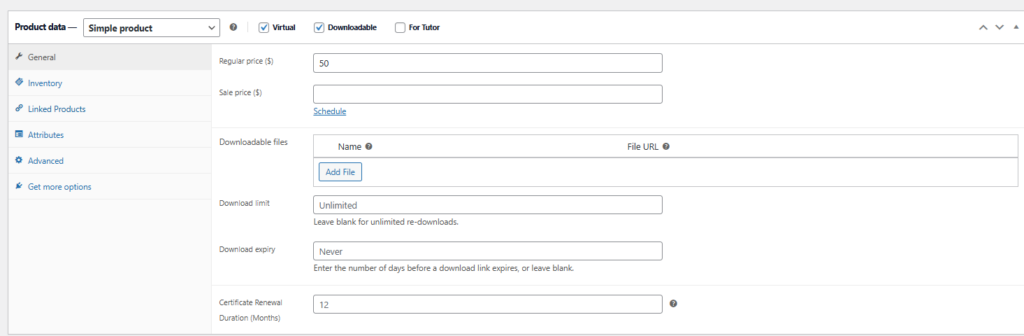
Certificate Renewal Duration (Months): Here you must enter how many months of validity the student gains by purchasing this product.
Example: If you enter 12, upon purchase, the certificate’s expiration date will be extended by 1 year.
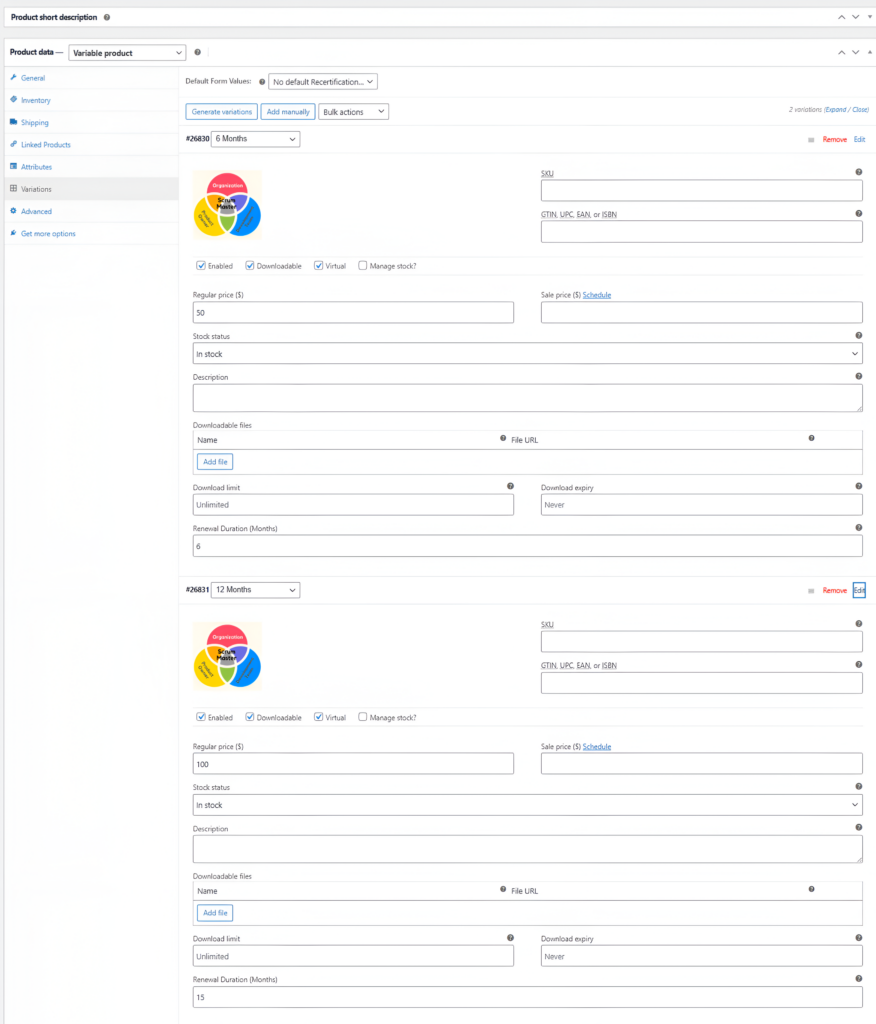
Variations (Optional): If you use variable products, you can create options like “1-Year Renewal” and “2-Year Renewal.” The duration field will appear in each variation so you can enter 12 and 24, respectively.
STEP 2: Connect the Product to the Course (In TutorLMS)
Now that you have the “Ticket” (Product), you must tell the Course that this is the valid ticket for entry.
Go to TutorLMS > Courses and edit the course you want to monetize.
In the course builder, you’ll see some new fields that make this possible:
1.- Set as Renewal Exam Course:
Here you will find 2 options:
1.1.- No (Standard course)
1.2.- Yes (Hidden exam course)
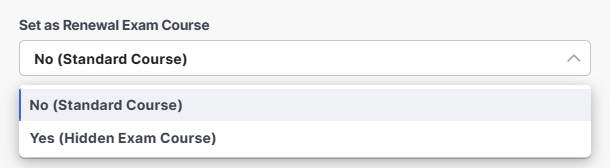
For main courses or standard courses, you should always choose option 2.
2.- Initial certificate validity (months):
In this field, enter the number of months the certificate will be valid initially. For example, if you sell a Scrum course and the certification is included in the regular purchase, you would enter 12 months (this validity is the first “free” validity included with the course purchase).

3.- Renewal duration (months) – optional:
What is this for? Normally, you define the duration in the product (Step 1). But if for any reason you want to force a different duration from the course, you can enter it here.
Recommendation: Leave it blank and manage the duration from the WooCommerce product for better organization.

4.- Renewal Product (Woocommerce):
Here you search for and select the product you created in Step 1.
Action: This creates the link. Now the system knows that when someone buys THAT product, they must renew THIS course.

5.- Requires Exam for Recertification?
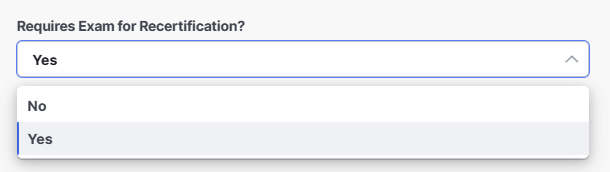
Here you define the renewal requirement. You have two options:
OPTION A: Administrative Renewal (Payment Only)
Settings: In the “Renewal Has Exam?” field, select NO.
Experience: The student pays and that’s it. They instantly receive an email confirming that their certificate is valid for another year.
Ideal Use: Memberships, administrative fees, or courses where knowledge re-evaluation is not required.

Note: Below this field, you will see another field called: “Select Exam Course.” If you choose option A, you must leave this option unselected.
OPTION B: Recertification (Payment + Exam)
Settings: In the “Renewal Has Exam?” field, select YES.

Note: A selector will appear to choose an “Exam Course.” You must select a course. containing only the final validation exam.
STEP 3: Creating an exam-type course: This step only applies if You will choose OPTION B: Recertification (payment + exam)
Go to TutorLMS > Courses and create a new course.
In the course builder, fill in the usual fields: Course Title, for example: Scrum 2025 Recertification Exam
You can add a description.
You can add a featured image.
In the pricing model, you can select Free (it doesn’t need to be paid).
You can assign it a category, for example: Recertification Exams.
Now, in the field: Set as Renewal Exam Course, you will choose the option: Yes (Hidden Exam Course).

Leave the rest of the fields unselected (including the fields related to the badge functionality).
In the Curriculum option, you will upload the quizzes you want. In the Additional option, do not select Certificate.
And save changes.
Note: Remember that you must complete step 3 if you plan to use option B: Recertification (payment + exam). If you are not going to use that option, you can skip step 3.
Experience (The Intelligent Workflow):
The student purchases the renewal.
NOTE: The certificate date DOES NOT change yet.
The system automatically enrolls the student in the “Exam Course.”
The student takes the exam.
Only if they pass does the system trigger the renewal of the original certificate and update the date.
Ideal Use: Medical, legal, or technical certifications where it is mandatory to demonstrate that you are still up-to-date (e.g., First Aid).
Frequently Asked Questions (Date Logic)
What happens if I configure different durations in the Product and the Course? The system follows a strict hierarchy to avoid conflicts. The most specific configuration always takes precedence:
Priority 1 (Highest): What the Product Variation states (if the customer chose “2-Year Pack,” that is what they get).
Priority 2: What the Basic Product states.
Priority 3: What the configuration of the Course.
From what date are the months added? The system is fair to the student:
If the certificate has ALREADY expired: The new months are added starting from the date of payment (to avoid losing validity time for the past period).
If the certificate HAS NOT YET expired: The new months are added to the future expiration date (they accumulate).
Example: It expires on December 31st. I pay today (October) for a 12-month renewal. My new expiration date will be December 31st of next year. I don’t lose the remaining months.
Shortcodes to display certificate validity:
You can add shortcodes to the certificates to display their validity. You can configure this in the section:


