
Skip to content
  • Home
  • Features
  • Pricing
  • More Addons
    • TLMS Open Badges
    • TLMS Advanced Fields
    • TLMS Dashboard
  • Help
  • TutorLMS Fix
  • Contact
  • Blog
  • Login
  • 0

Introduction

  • TLMS Power Tools

First Steps

  • System Requirements

Dashboard

  • Getting to know the Dashboard Submenu

Course Management

  • Management Panel

Validity of Certificates

  • Validity of Certificates (Student Dashboard)
  • General functionalities
  • CSV/PDF Reports

Quiz Reports

  • My Quiz Attempts (Student Dashboard)
  • Quiz Reports

Certificate Report

  • Certificate Report

Email Settings

  • Email Settings

Sale and Renewal of Certificates

  • Functionality: Certificate Sales and Renewals

Shortcodes for Certificates

  • Shortcodes for Certificates

Badge

  • Verified Badges

Q&A Central Hub

  • Q&A Central Hub: Manage Tutor LMS comments quickly

Login & Session

  • Always-On Session

LinkedIn

  • LinkedIn “Add to Profile” Integration
View Categories
  • Home
  • Documention
  • Quiz Reports

My Quiz Attempts (Student Dashboard)

< 1 min read

Unlike the basic TutorLMS history, this section offers a granular and detailed (“Deep Dive”) analysis of each quiz attempt, ideal for students who need to understand where they went wrong.
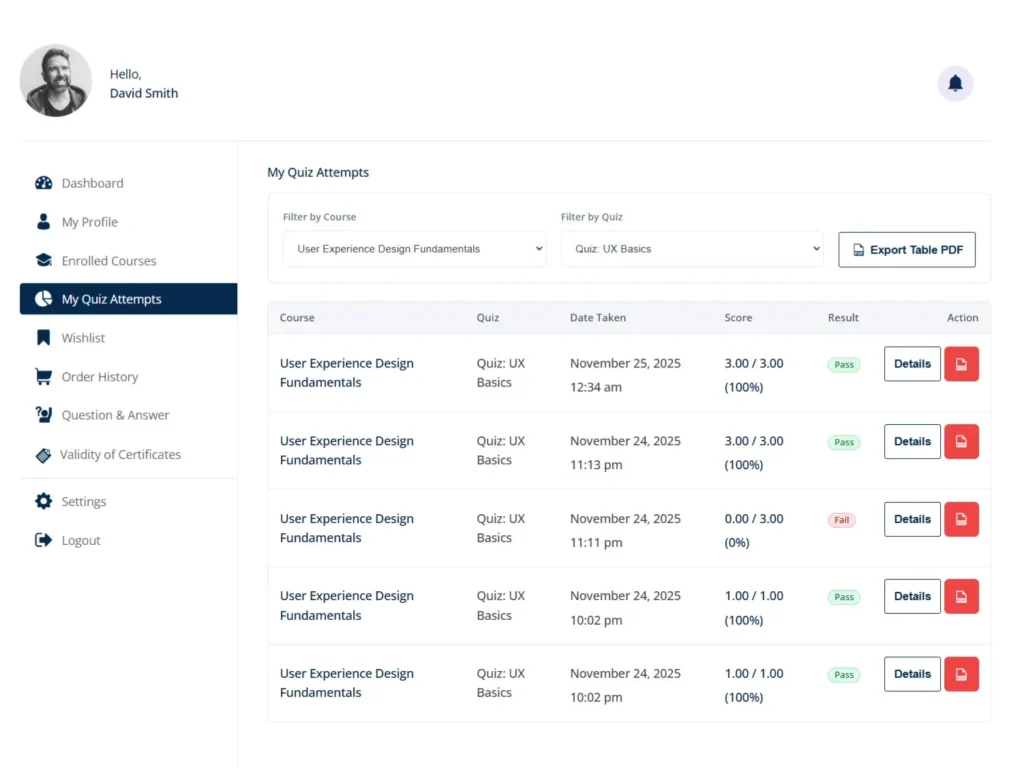
Filtering Tools: Students can filter the table by:

Course: To see only quizzes for a specific subject.

Quiz: To see the attempt history for a specific quiz.

Results Table: Displays the Course, Quiz, Date, Score (Numerical and Percentage), and Result (Pass/Fail).

Advanced Functionality:
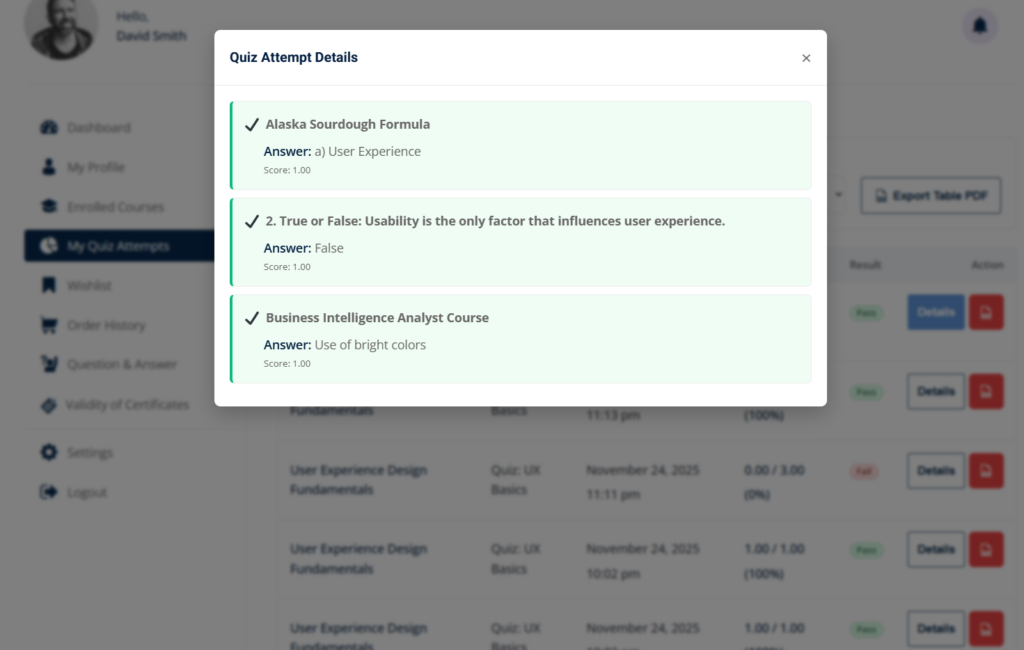
“Details” Button (Question-by-Question Analysis):

Clicking this button opens a pop-up window (modal) without reloading the page.

It displays each quiz question, the student’s answer, and whether it was correct (✔) or incorrect (✘).

Educational Value: Allows students to review their exact mistakes to better study before their next attempt.

“PDF” Button (Results Download):
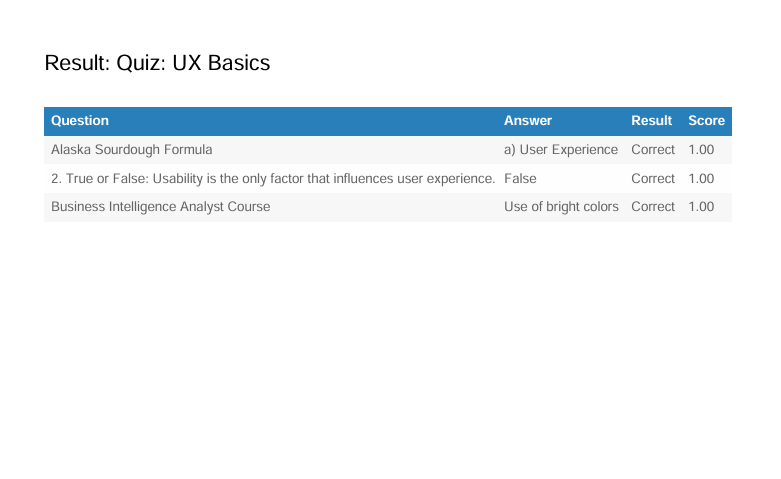
Instantly generates a PDF document with the report of that specific attempt.

Useful for students who need to provide physical proof of passing midterm exams to third parties or employers.

General Export:
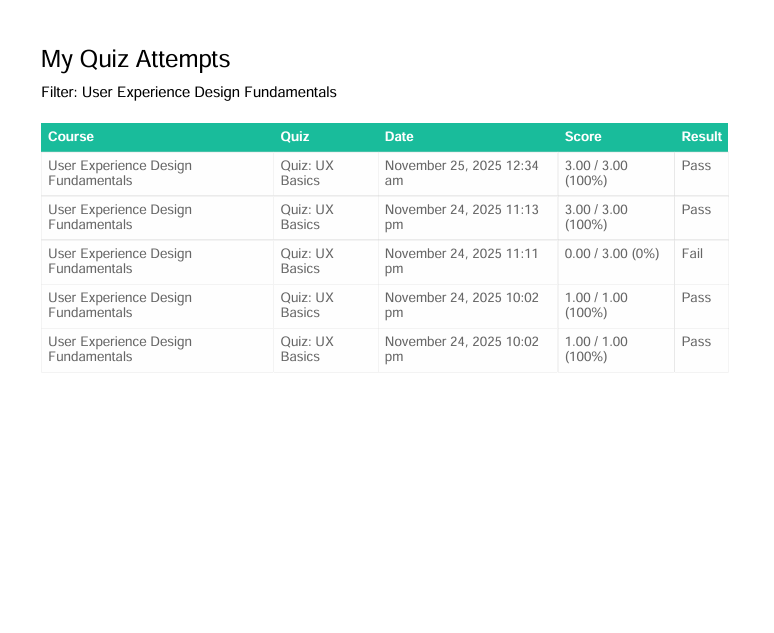
An “Export Table PDF” button in the header allows you to download the complete history of attempts filtered on the screen.

Updated on January 9, 2026

What are your Feelings

  • Happy
  • Normal
  • Sad

Share This Article :

  • Facebook
  • X
  • LinkedIn
  • Pinterest
Quiz ReportsQuiz Reports

Automate, optimize, and empower your online courses with the most advanced LMS tools.

Support
  • TutorLMS Fix
  • Support
  • Contact
  • Documentation
  • FAQ
Company
  • About us
  • Terms & Privacy
Resources
  • Princing
  • Release notes
  • Roadmap
Social
  • Facebook

©TLMS Power Tools. All Rights Reserved.

Review My Order

0

Subtotal

Taxes & shipping calculated at checkout

Checkout

Notifications