
Skip to content
  • Home
  • Features
  • Pricing
  • More Addons
    • TLMS Open Badges
    • TLMS Advanced Fields
    • TLMS Dashboard
  • Help
  • TutorLMS Fix
  • Contact
  • Blog
  • Login
  • 0

Introduction

  • TLMS Power Tools

First Steps

  • System Requirements

Dashboard

  • Getting to know the Dashboard Submenu

Course Management

  • Management Panel

Validity of Certificates

  • Validity of Certificates (Student Dashboard)
  • General functionalities
  • CSV/PDF Reports

Quiz Reports

  • My Quiz Attempts (Student Dashboard)
  • Quiz Reports

Certificate Report

  • Certificate Report

Email Settings

  • Email Settings

Sale and Renewal of Certificates

  • Functionality: Certificate Sales and Renewals

Shortcodes for Certificates

  • Shortcodes for Certificates

Badge

  • Verified Badges

Q&A Central Hub

  • Q&A Central Hub: Manage Tutor LMS comments quickly

Login & Session

  • Always-On Session

LinkedIn

  • LinkedIn “Add to Profile” Integration
View Categories
  • Home
  • Documention
  • Shortcodes for Certificates

Shortcodes for Certificates

< 1 min read

To display the dynamic expiration date within certificates generated by TutorLMS, use the following shortcode in the certificate editor.

Main Shortcode: [tlms_certificate_expiry]

This code will be automatically replaced with the expiration date calculated for that specific student in that course.

Available Attributes:

You can customize how the date is displayed using these parameters:

1.- label: Text that will appear before the date.

2.- format: PHP date format (e.g., d/m/Y, F j, Y). If omitted, it uses the default WordPress format.

3.- no_expiry: Text to display if the certificate is lifetime (does not expire).
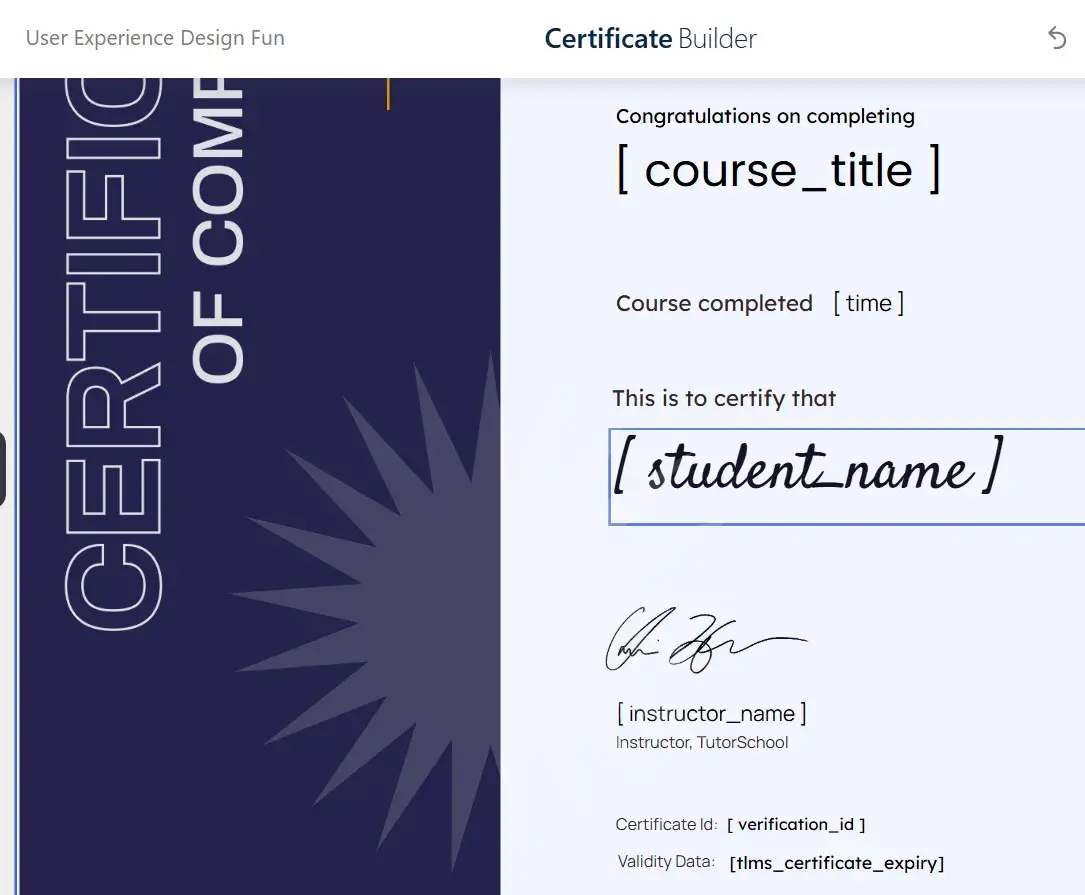
Examples of Use:

Desired ResultShortcode to Use
Date only: 25/11/2026[tlms_certificate_expiry]
With label: Valid until: 25/11/2026[tlms_certificate_expiry label=”Valid until:”]
Text format: Expires: November 25, 2026[tlms_certificate_expiry label=”Expires:” format=”F j, Y”]
Lifetime message: Validity: For life[tlms_certificate_expiry label=”Validity:” no_expiry=”Lifetime”]

Tip: Place this shortcode in a text block within the Tutor Certificate Builder so that it appears printed on the final PDF.

Final result: the certificate shows a validity date.

Updated on November 29, 2025

What are your Feelings

  • Happy
  • Normal
  • Sad

Share This Article :

  • Facebook
  • X
  • LinkedIn
  • Pinterest
Shortcodes for CertificatesShortcodes for Certificates

Automate, optimize, and empower your online courses with the most advanced LMS tools.

Support
  • TutorLMS Fix
  • Support
  • Contact
  • Documentation
  • FAQ
Company
  • About us
  • Terms & Privacy
Resources
  • Princing
  • Release notes
  • Roadmap
Social
  • Facebook

©TLMS Power Tools. All Rights Reserved.

Review My Order

0

Subtotal

Taxes & shipping calculated at checkout

Checkout

Notifications