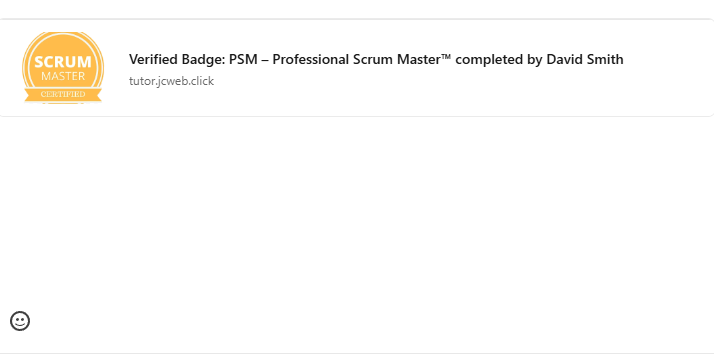
We’ve introduced a new feature: Badges. The Badge system generates a unique, permanent, public webpage for each student who completes a course. Unlike a PDF certificate (which is a static file), this page acts as a dynamic digital credential, allowing third parties (employers, clients) to verify the authenticity of the studies, view the skills acquired, and check if the certification is still valid or has expired.
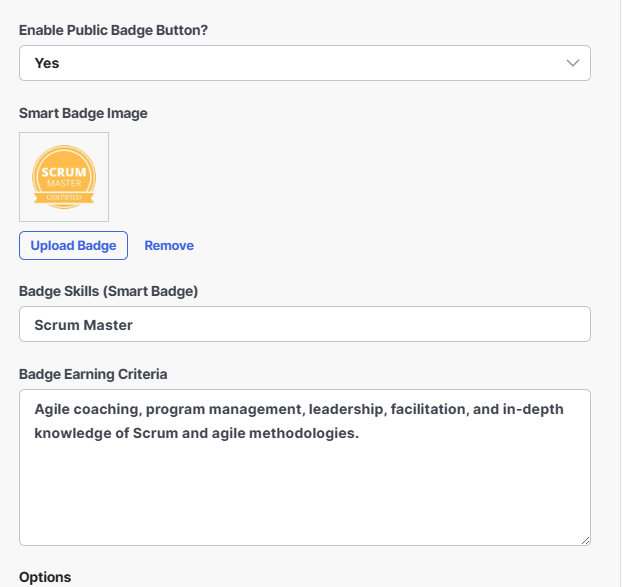
1.- Course Configuration (Backend):
For a course to generate a badge, the administrator must configure the following fields in the “Certificate & Badges Settings” section of the course:
Configuration:
1.- Enable Badge: Activates the generation of the verification page for this course.
2.- Badge Image: Visual image of the badge (PNG format with a transparent background is recommended).
3.- Skills: Comma-separated tags (e.g., SEO, Marketing, Analytics) that will appear as tags on the public page.
4.- Earning Criteria: Description of what the student had to achieve to earn the badge (e.g., “Complete 100% of the lessons and pass the final exam with over 80%”).
2.- Public Verification Page (Frontend)
This feature transforms the certification into a marketing tool. It allows your students to share their achievements on LinkedIn with a single click, while the verification page acts as a guarantee of authenticity for recruiters and as a sales funnel for new students interested in obtaining the same badge.
Description:
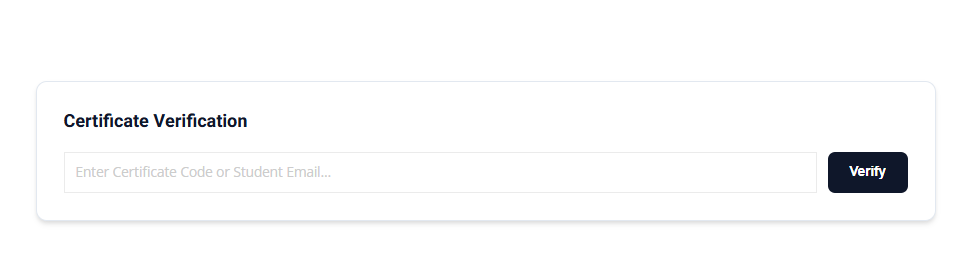
On this page, recruiters or employers can verify the authenticity of certificates and badges.
To do this, you must create a new page and add the following shortcode:
[tlmspt_certificate_validator]
Recruiters or anyone else can verify the authenticity and validity of certificates using the email address or certificate ID.
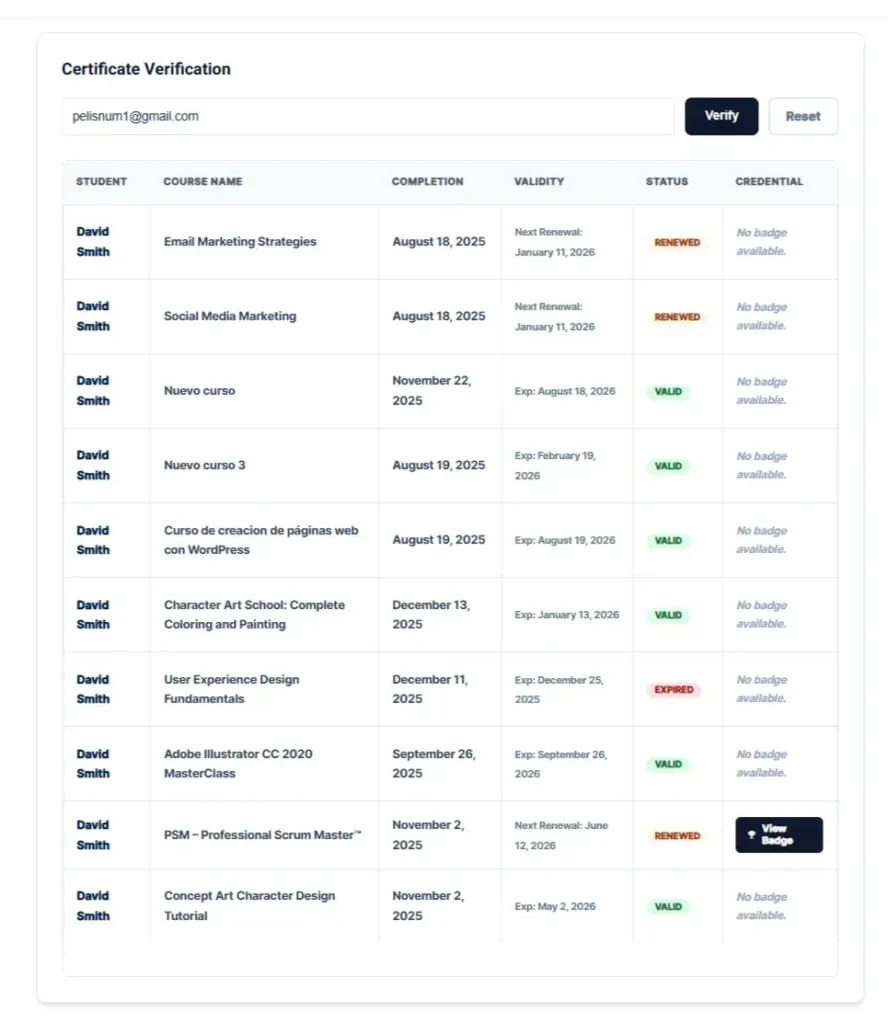
For courses that have a badge, clicking the “Badge” button will redirect you to the page specifically created to display the course badge.
3.- Badge Verification Page (frontend)
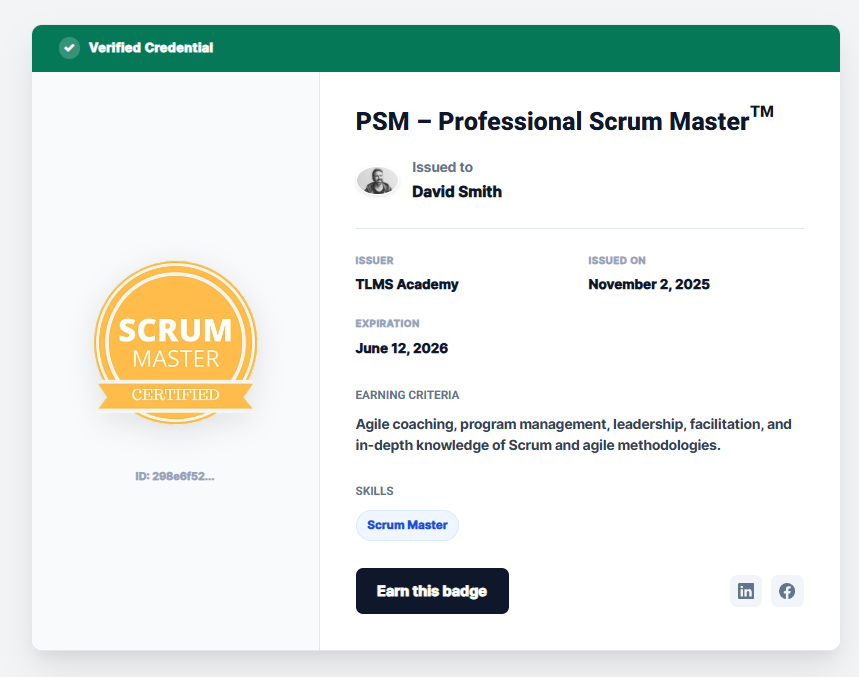
The verification page features a professional design divided into two columns:
1.- Visual Column (Left): Displays a high-quality image of the badge and the unique credential ID.
2.- Data Column (Right):
Validity Status: A top bar clearly indicates whether the credential is “Verified Credential” (Green) or “Credential Expired” (Red). The system checks the expiration date in real time; if the certificate has expired, the public page will alert you.
Holder Information: Profile Picture (Avatar), Student Name, and Course Name.
Metadata: Issue Date, Expiration Date (or “Does not expire”), and Issuing Entity.
Skills & Criteria: Displays the skills and requirements configured for the course.
3.- “Earn this badge” Button: At the bottom of the page, there’s a button that links directly to the course sales page. If someone sees a friend’s badge and wants it, this button takes them to purchase the course.
4.- Social Media Sharing:
This is a key feature for marketing the academy.
Students can share their badge on LinkedIn or Facebook!
Result: When a student shares their link on LinkedIn, Facebook, or Twitter, the social network automatically generates a perfect visual “card” that says: “Verified Badge: [Course] completed by [Student]”, displaying the badge image.
Sharing Buttons: The public page includes direct buttons to “Add to LinkedIn” or share on Facebook, making it easy for students to showcase their achievement.