
Skip to content
  • Home
  • Features
  • Pricing
  • More Addons
    • TLMS Open Badges
    • TLMS Advanced Fields
    • TLMS Dashboard
  • Help
  • TutorLMS Fix
  • Contact
  • Blog
  • Login
  • 0

Introduction

  • TLMS Power Tools

First Steps

  • System Requirements

Dashboard

  • Getting to know the Dashboard Submenu

Course Management

  • Management Panel

Validity of Certificates

  • Validity of Certificates (Student Dashboard)
  • General functionalities
  • CSV/PDF Reports

Quiz Reports

  • My Quiz Attempts (Student Dashboard)
  • Quiz Reports

Certificate Report

  • Certificate Report

Email Settings

  • Email Settings

Sale and Renewal of Certificates

  • Functionality: Certificate Sales and Renewals

Shortcodes for Certificates

  • Shortcodes for Certificates

Badge

  • Verified Badges

Q&A Central Hub

  • Q&A Central Hub: Manage Tutor LMS comments quickly

Login & Session

  • Always-On Session

LinkedIn

  • LinkedIn “Add to Profile” Integration
View Categories
  • Home
  • Documention
  • Validity of Certificates

Validity of Certificates (Student Dashboard)

1 min read

This new tab in the student menu acts as a “Digital Wallet” for certifications. It displays a clear table with the status of all completed courses.
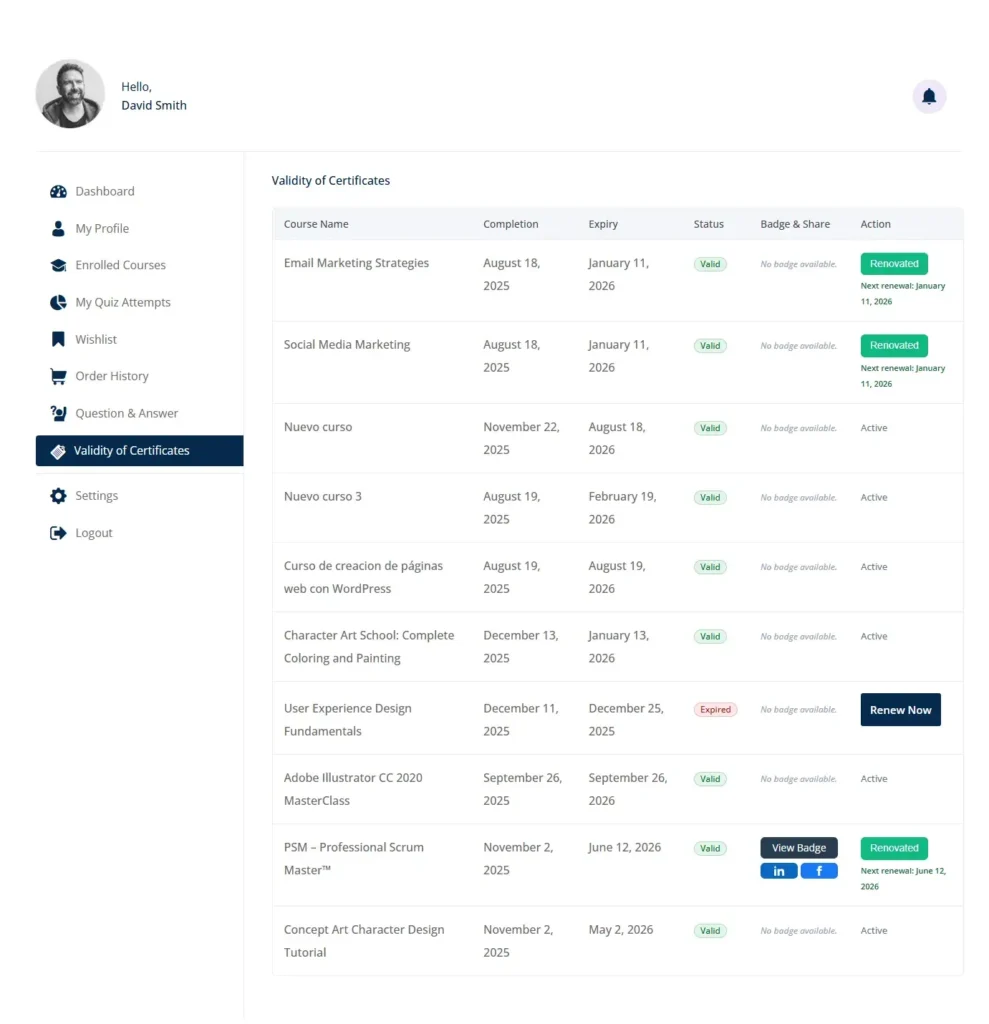
1.- Columns and Visible Data:

Course Name: Name of the completed course.

Completion: Original date the course was completed.

Expiry: The exact date the current certificate expires.

Status: Visual indicator (traffic light).

🟢 Valid/Lifetime: The certificate is valid.

🔴 Expired: The certificate has expired and requires attention.

🟠 Pending Exam: (Special) Appears when the student has already paid for renewal but still needs to pass the recertification exam.

2.- Available Actions (Buttons):

Renew Now:

When it appears: When the status is “Expired”.

Function: Redirects the student directly to the payment product (WooCommerce) configured to renew that specific certificate.

3.- Take Exam:

When it appears: Immediately after paying for a renewal that requires re-evaluation.

Function: Takes the student directly to the validation exam without going through unnecessary intermediate pages.

Renewed:

When it appears: After a successful renewal.

Extra info: Displays a small text below indicating the next renewal date (“Next renewal: [Date]”).

Badge Integration: If the course has active badges, a “Badge & Share” column appears with social tools:

View Badge: Opens the public badge verification page.

Social Buttons: Small LinkedIn and Facebook icons that allow sharing the certification on the student’s profile with a single click.

Updated on January 9, 2026

What are your Feelings

  • Happy
  • Normal
  • Sad

Share This Article :

  • Facebook
  • X
  • LinkedIn
  • Pinterest
CSV/PDF ReportsGeneral functionalities

Automate, optimize, and empower your online courses with the most advanced LMS tools.

Support
  • TutorLMS Fix
  • Support
  • Contact
  • Documentation
  • FAQ
Company
  • About us
  • Terms & Privacy
Resources
  • Princing
  • Release notes
  • Roadmap
Social
  • Facebook

©TLMS Power Tools. All Rights Reserved.

Review My Order

0

Subtotal

Taxes & shipping calculated at checkout

Checkout

Notifications