
Skip to content
  • Home
  • Features
  • Pricing
  • More Addons
    • TLMS Open Badges
    • TLMS Advanced Fields
    • TLMS Dashboard
  • Help
  • TutorLMS Fix
  • Contact
  • Blog
  • Login
  • 0

Introduction

  • TLMS Power Tools

First Steps

  • System Requirements

Dashboard

  • Getting to know the Dashboard Submenu

Course Management

  • Management Panel

Validity of Certificates

  • Validity of Certificates (Student Dashboard)
  • General functionalities
  • CSV/PDF Reports

Quiz Reports

  • My Quiz Attempts (Student Dashboard)
  • Quiz Reports

Certificate Report

  • Certificate Report

Email Settings

  • Email Settings

Sale and Renewal of Certificates

  • Functionality: Certificate Sales and Renewals

Shortcodes for Certificates

  • Shortcodes for Certificates

Badge

  • Verified Badges

Q&A Central Hub

  • Q&A Central Hub: Manage Tutor LMS comments quickly

Login & Session

  • Always-On Session

LinkedIn

  • LinkedIn “Add to Profile” Integration
View Categories
  • Home
  • Documention
  • Email Settings

Email Settings

1 min read

This panel is the system’s communications control center. It allows you to configure, design, and customize all the automatic notifications that the plugin sends to students throughout their certificate lifecycle (issuance, expiration, and renewal)..

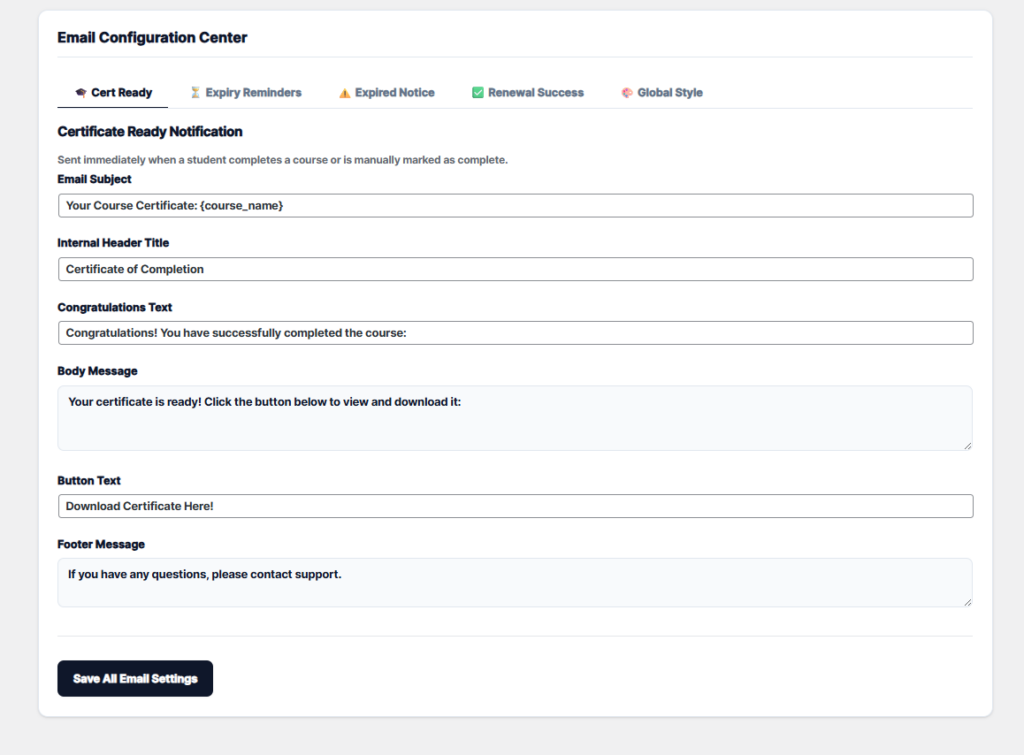
The system manages 4 types of events. Each tab allows you to customize the Subject, Header, and Body of the message independently.

A. 🎓 Cert Ready

Key Variables: {student_name}, {course_name}

Trigger: Automatically sent when the student completes the course and passes the exam.

Purpose: Immediate delivery of the digital certificate.
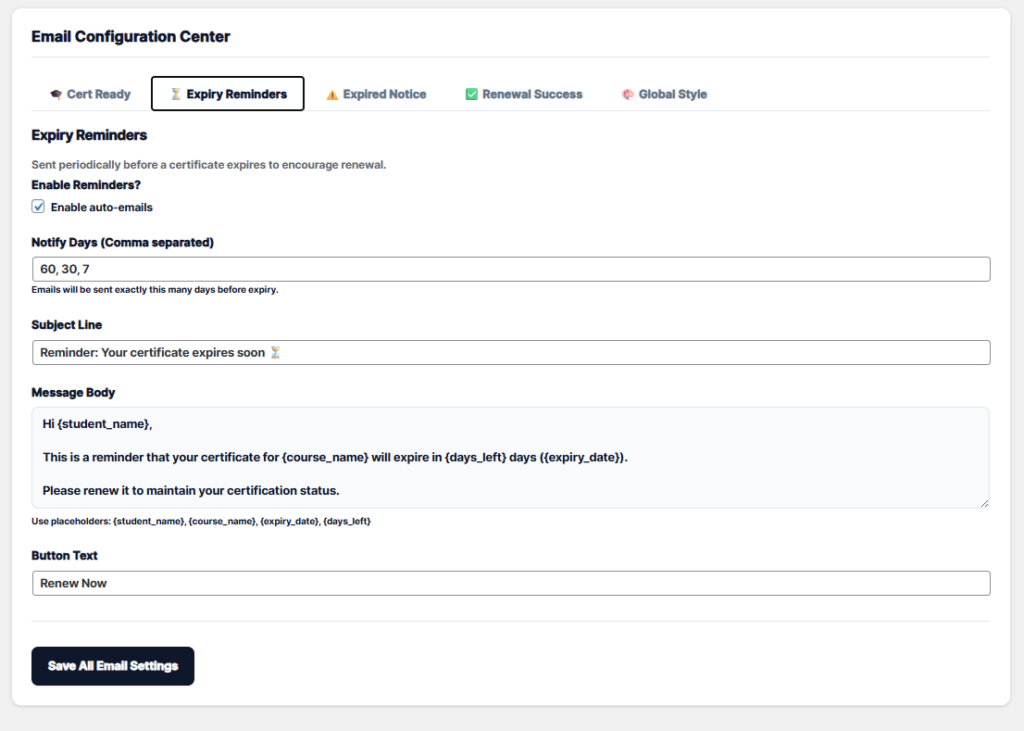
B. ⏳ Expiry Reminders

Trigger: Sent before the certificate expires.

Notify Days: Numeric field where alert intervals are defined (e.g., 60, 30, 7).

Note: If you enter 30, the system will send an email exactly 30 days before the expiration date.

Purpose: To create a sense of urgency for early renewal.

Key Variables: {days_left} (days remaining), {expiry_date}.
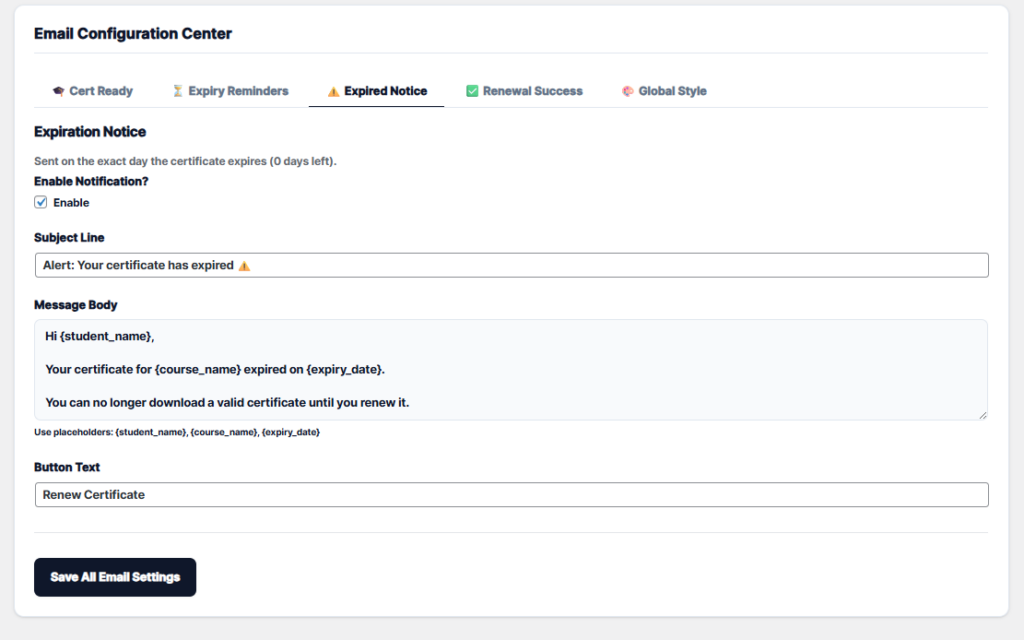
C. ⚠️ Expired Notice

Trigger: Sent on the exact expiration date (Day 0).

Purpose: To inform you of the expiration and urge immediate action.
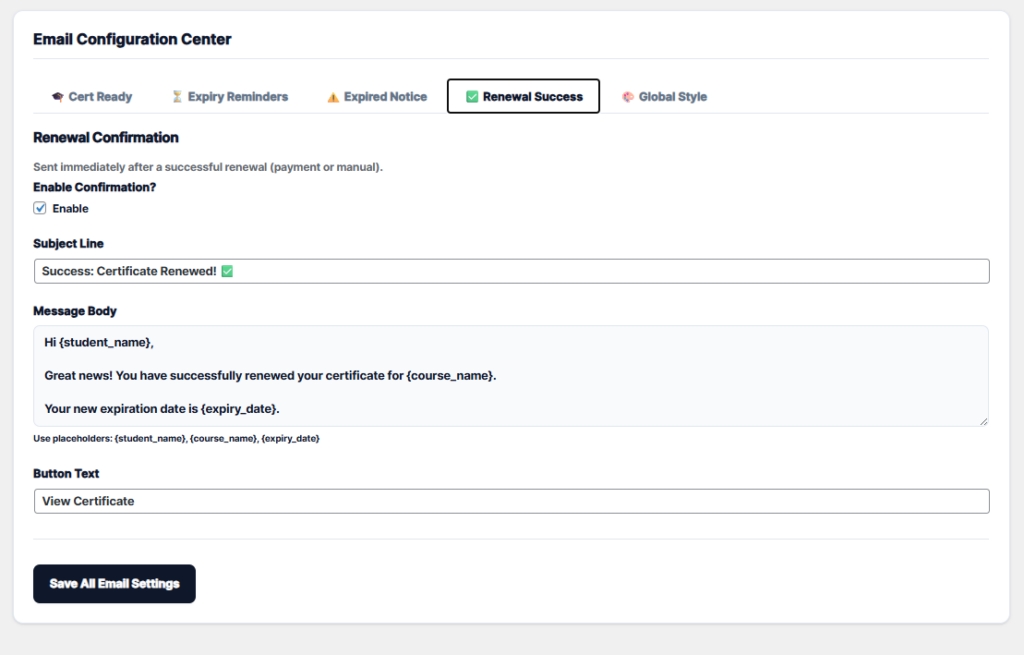
D. ✅ Renewal Success (Renewal Confirmation)

Trigger: Sent after a successful payment or manual renewal.

Purpose: To confirm to the student that their certificate is valid again and to show the new expiration date.
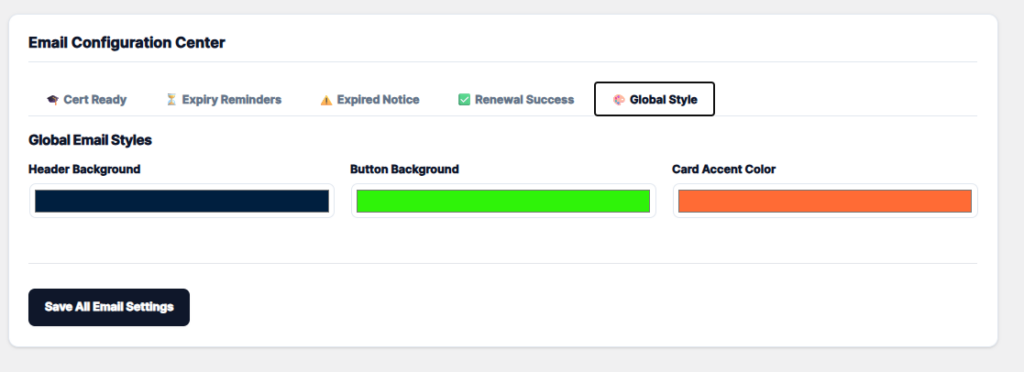
E. Visual Customization (Global Style)
This tab is dedicated to brand identity, allowing for aesthetic changes without editing code.

    Header Background: Color selector for the top bar of the email.

    Button Color: Background color for call-to-action buttons.

    Accent Color: Color for borders and visual details of cards within the email.
    Updated on January 6, 2026

    What are your Feelings

    • Happy
    • Normal
    • Sad

    Share This Article :

    • Facebook
    • X
    • LinkedIn
    • Pinterest
    Email SettingsEmail Settings

    Automate, optimize, and empower your online courses with the most advanced LMS tools.

    Support
    • TutorLMS Fix
    • Support
    • Contact
    • Documentation
    • FAQ
    Company
    • About us
    • Terms & Privacy
    Resources
    • Princing
    • Release notes
    • Roadmap
    Social
    • Facebook

    ©TLMS Power Tools. All Rights Reserved.

    Review My Order

    0

    Subtotal

    Taxes & shipping calculated at checkout

    Checkout

    Notifications