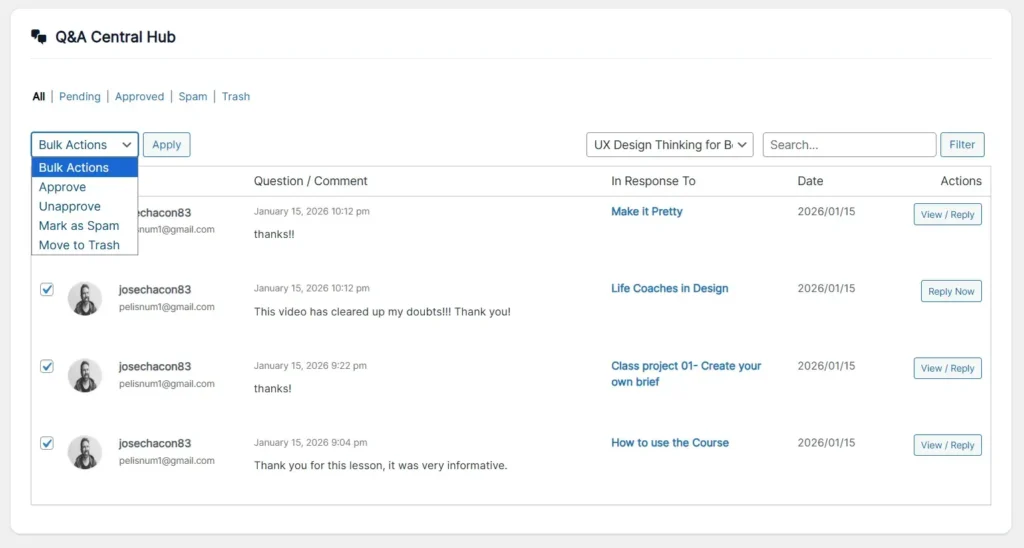
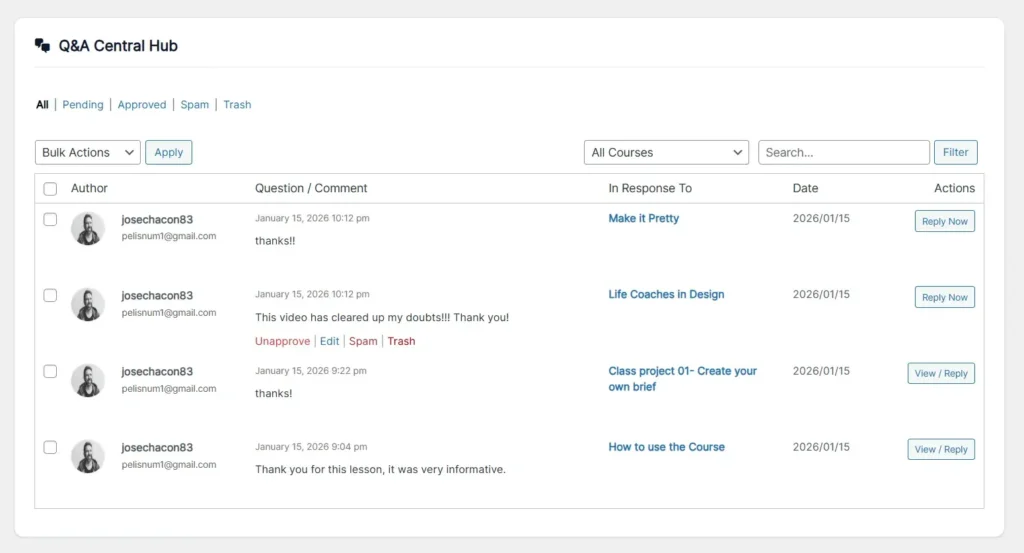
The Q&A Central Hub is a unified menu where you can quickly Manage Tutor LMS comments quickly. It eliminates the need to navigate course by course to moderate questions. Now, you can view, moderate, edit, and respond to all student interactions from a single, efficient screen.
Features:
Full Moderation Management: Approve, reject (send to pending), mark as spam, or delete questions directly from the list.
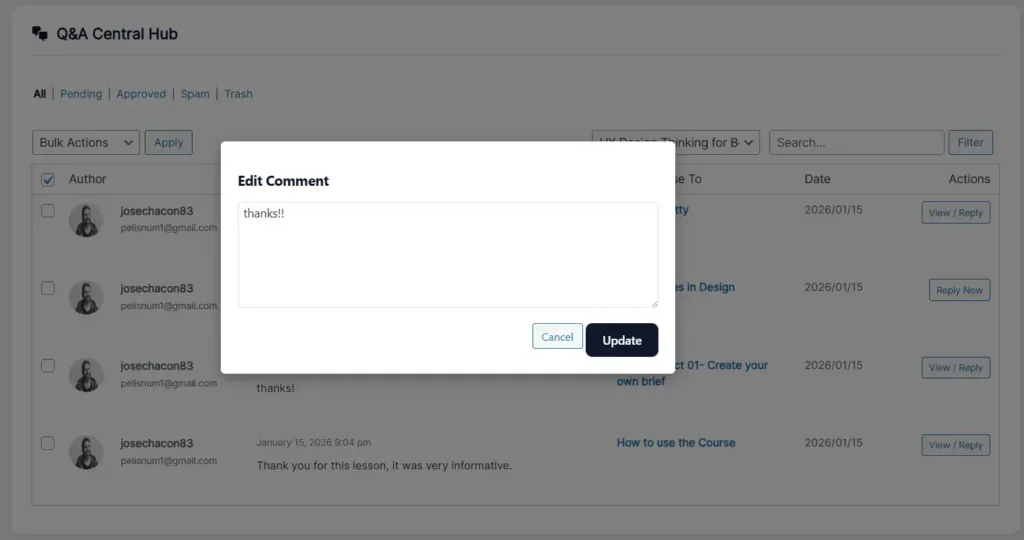
Quick Edit: Correct spelling errors or adjust the content of student questions using a modal window without reloading the page.
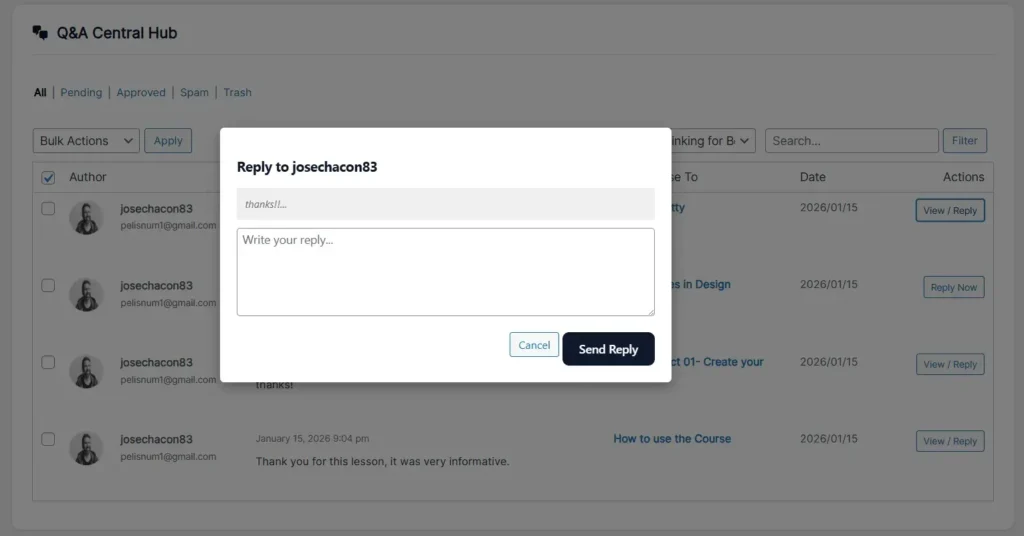
Instant Responses: Dedicated button to open a response modal, allowing you to reply to the student immediately.
Bulk Actions: Select multiple questions and apply bulk actions (e.g., approve 50 questions at once).
Smart Filters: Sort by status tabs (Pending, Approved, Spam, Trash) and specific filtering by Course.
Step-by-Step User Guide:
1.- Accessing the Dashboard
Go to the WordPress administration menu:
TLMS Power Tools > Q&A Hub
2.- Navigation and Filtering
At the top, you’ll find tools to organize your workflow:
Status Tabs: Click Pending to see only what requires your immediate attention, or Spam to review blocked comments.
Filter by Course: Use the “All Courses” dropdown menu to isolate questions from a specific course (e.g., “User Experience Design”).
Search: Enter keywords to quickly find specific questions.
3.- Comment Moderation
Hovering over any question will display a menu of quick actions below the text:
Approve: Publishes the comment immediately (turns green/white).
Unapprove: Returns it to “Pending” status (turns light red).
Spam: Sends it to the spam folder.
Trash: Sends it to the trash.
4.- Content Editing
If a student made a typo or wrote something inappropriate:
Click the “Edit” link that appears when you hover over it.
A pop-up window (modal) will open with the original text.
Edit the text and click “Update.” The change will be reflected instantly.
5.- Respond to the Student
To answer a question:
Click the “Reply Now” (or “View / Reply”) button located to the right of the row.
Type your answer in the modal window that appears.
Click “Send Reply.” The answer will be automatically posted to the corresponding lesson, and the student will be notified (depending on the TutorLMS settings).
6.- Bulk Actions
To clear or approve multiple questions at once:
Check the boxes to the left of the desired questions.
In the “Bulk Actions” menu at the top, select the action (e.g., Approve or Mark as Spam).
Click the “Apply” button.