
This feature transforms your students’ success into viral marketing for your academy. The “Add to Profile” integration allows students to add their TutorLMS certificates directly to the “Licenses and Certifications” section of their LinkedIn profile with a single click.
This eliminates the hassle of manually copying and pasting data. By making it easy for students to share their achievements, you increase the social proof of your platform and improve your graduates’ employability.
Functionality:
The system dynamically generates a smart button (“Add to Profile”) on the certificate download page or in the student dashboard.
When clicked, the plugin redirects the user to LinkedIn and automatically populates the certification form with the exact course details:
Course Name: Exact title of the completed course.
Issuing Organization: Links the certificate to your company/academy’s official LinkedIn page.
Issue Date: Exact completion date.
Credential ID: The unique hash or ID of the certificate generated by TutorLMS.
Credential URL: Direct link to the public validation page.
Step-by-Step User Guide:
Administrator View:
1.- Go to TLMS Power Tools – LinkedIn settings
2.- In the LinkedIn Organization ID field, enter your organization ID (How to find it? Access your LinkedIn company page as an administrator. The ID is the number in the URL: linkedin.com/admin/organization/12345678)
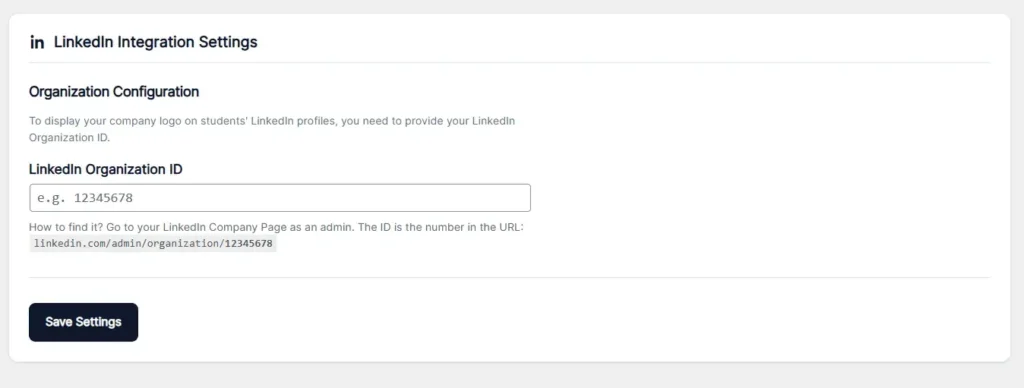
Save Settings.
Student View:
1.- Go to Dashboard – Validity of Certificates
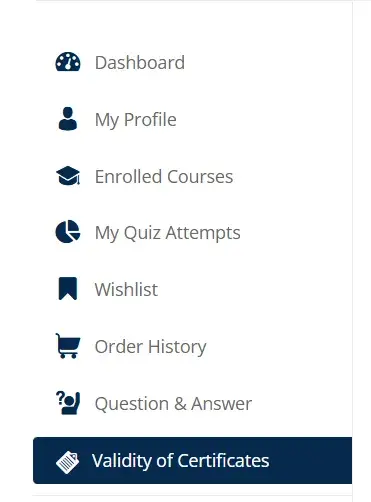
2.- Navigate to the course you wish to add to your LinkedIn profile and click the “Add to Profile” button.

3.- You will be redirected to your personal LinkedIn profile, where you can view the license that has been added to your profile and its related information.
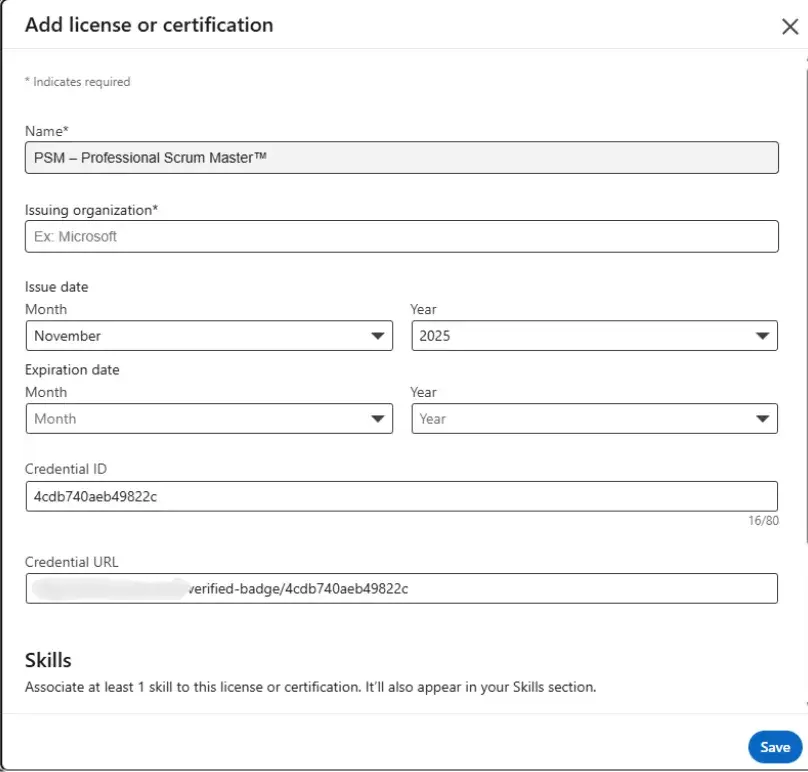
Save Changes.


