
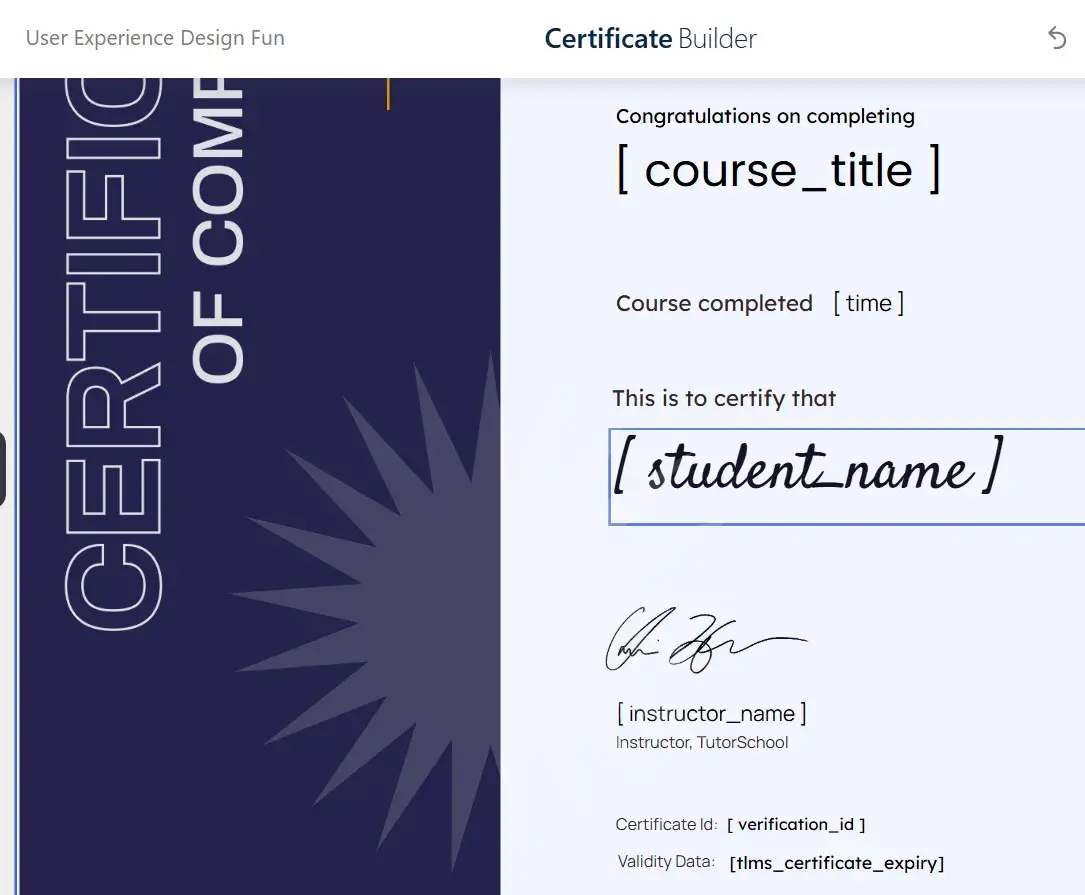
To display the dynamic expiration date within certificates generated by TutorLMS, use the following shortcode in the certificate editor.
Main Shortcode: [tlms_certificate_expiry]
This code will be automatically replaced with the expiration date calculated for that specific student in that course.
Available Attributes:
You can customize how the date is displayed using these parameters:
1.- label: Text that will appear before the date.
2.- format: PHP date format (e.g., d/m/Y, F j, Y). If omitted, it uses the default WordPress format.
3.- no_expiry: Text to display if the certificate is lifetime (does not expire).
Examples of Use:
| Desired Result | Shortcode to Use |
| Date only: 25/11/2026 | [tlms_certificate_expiry] |
| With label: Valid until: 25/11/2026 | [tlms_certificate_expiry label=”Valid until:”] |
| Text format: Expires: November 25, 2026 | [tlms_certificate_expiry label=”Expires:” format=”F j, Y”] |
| Lifetime message: Validity: For life | [tlms_certificate_expiry label=”Validity:” no_expiry=”Lifetime”] |
Tip: Place this shortcode in a text block within the Tutor Certificate Builder so that it appears printed on the final PDF.

Final result: the certificate shows a validity date.


