
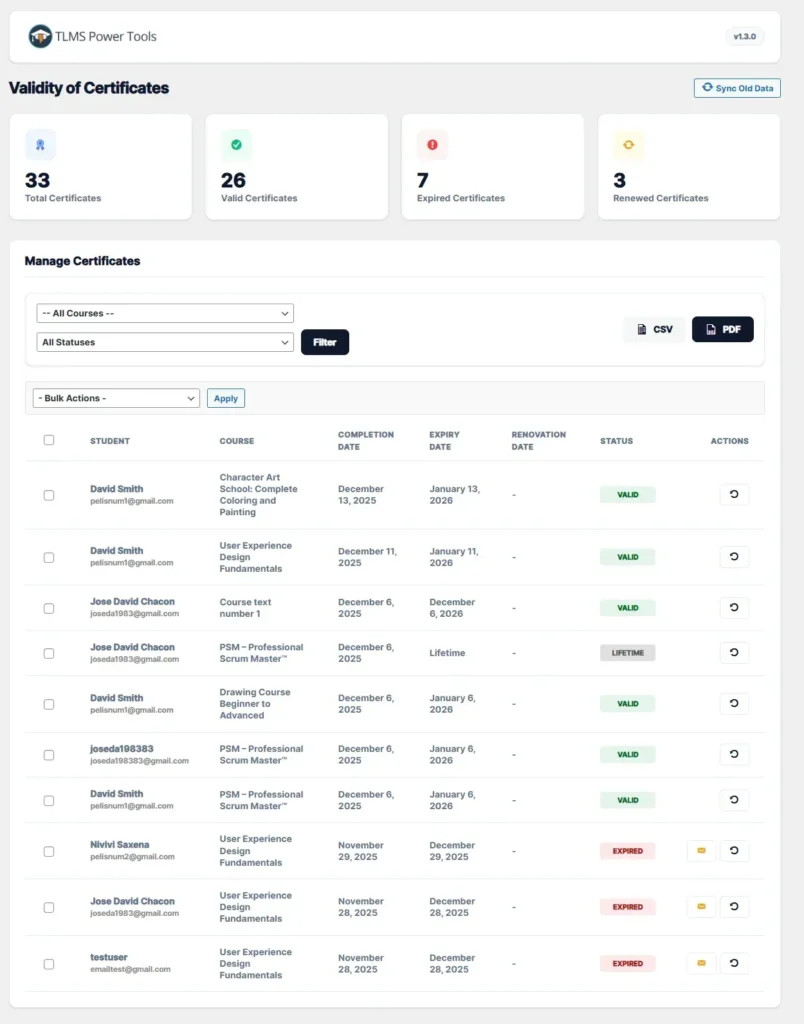
In this menu, you can manage the validity of certificates for all courses on your website. You can filter by:
- Course
- Status (Valid, Renewed, or Expired)
You can also:
- Student completion date
- Certificate expiration date
- Certificate renewal date
- Current certificate status (this can be: Valid, Expired, Lifetime, or Renewed)
Version v1.3 introduces three new features, which we will explain below in order.
- Button: Reset Data (per student)
- Button: Sync Old Data
- Button: Send email notification for expired certificates.
Reset Data Button (per student):

What does this button do? Think of this button as a “Factory Reset” specifically for a student’s certificate expiration date.
Its main function is to correct and recalculate a certificate’s expiration date, ensuring it matches the rules you currently have configured for the course.
When should you use it?
- If you changed the certificate duration:
Example: Your course used to last 1 year, but you’ve now decided it will last 2 years. If you use this button for a former student, the system will update their certificate to give it those 2 years of validity from the day it ended, applying the new rule.
- If there was a manual error:
Example: You accidentally marked a student’s certificate as “Renewed” and want to undo that action so it reverts to “Expired” or its original expiration date.
- If the dates don’t match:
If you see an unusual date or think the system didn’t calculate the expiration date correctly, this button forces the system to recalculate from scratch.
What happens when you click it? The system forgets any renewals or manual changes you’ve made to that certificate and automatically calculates the correct expiration date, based solely on:
- The exact day the student finished the course.
- The current validity period for the course.
Button: Sync Old Data
What does this button do?
It’s a bulk update tool. It ensures that all old certificates in the system have the correct expiration date according to your current course rules.
When to use it?
- After installing the plugin for the first time: If you already have students who completed courses months or years ago, installing this plugin will prevent them from having an assigned expiration date. Clicking this button will cause the system to calculate their dates retroactively.
- If you change the rules for many courses: If you decide to change the validity of several courses at once (for example, from 1 year to “Lifetime”), this button will update all existing students to comply with the new rule with a single click, without having to edit them individually.
Safety:
- Does not affect renewals: If a student has already renewed their certificate (either by paying or manually), this button will NOT affect their expiration date. It respects the “Renewed” status.
- Only affects original certificates: Recalculates dates based on when the student originally completed the course.
Summary: “Use this feature to apply your current course validity settings to all past students.”
Button: Send “Certificate expired” notification email

This is a manual communication tool that forces the immediate sending of an expiration reminder email to a student.
Primary Use Case (Returning Students): This button is essential for managing students who completed courses in the past (before this system was installed). Since these students did not receive automatic notifications at the time, the administrator can use this function to proactively contact them and invite them to renew their certification.
Secondary Use Case (Incidents): It also serves as a backup mechanism for recent students who report not having received the automatic email (for example, if it ended up in the Spam folder or there was a temporary server error).
Technical Behavior:
Bypasses Automation: When the button is pressed, the email is sent instantly, without waiting for scheduled system tasks.
Validation: The system will only send the email if the certificate has a valid expiration date. It will not send anything if the certificate is “Lifetime.”
The student will receive an email like the one in the following image:
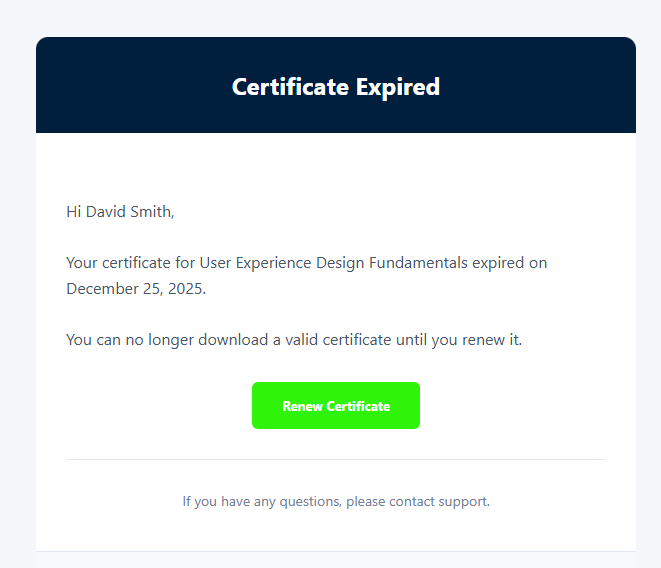
By clicking the “Renew now” button, the student will be directed to their dashboard in the “Validity of certificates” submenu where they can renew their certificate.



