Are you searching for a solution to manually complete course in Tutor LMS students are stuck in?
It’s a common scenario. Maybe they forgot to click the final “Complete” button, or perhaps a browser glitch prevented the progress update.
As an administrator, you simply want to mark the course as “Completed” so the student gets their certificate and stops emailing support. But when you look at the default Tutor LMS dashboard, you realize something surprising: there is no native “Force Completion” button for admins.
In this guide, we’ll explore why this happens and show you the fastest way to manually complete course in Tutor LMS without touching the database.
Quick Answer: By default, Tutor LMS does not provide an admin button to manually mark a course as complete. To fix a student stuck at 99%, you must either edit the database tables directly (risky), use a “User Switching” plugin, or install TLMS Power Tools to add a “Mark Complete” button directly to your course enrollment list.
The Problem: Tutor LMS Default Limitations
Out of the box, Tutor LMS is fantastic, but it is strict about progress rules. The system expects the student to trigger the completion event.
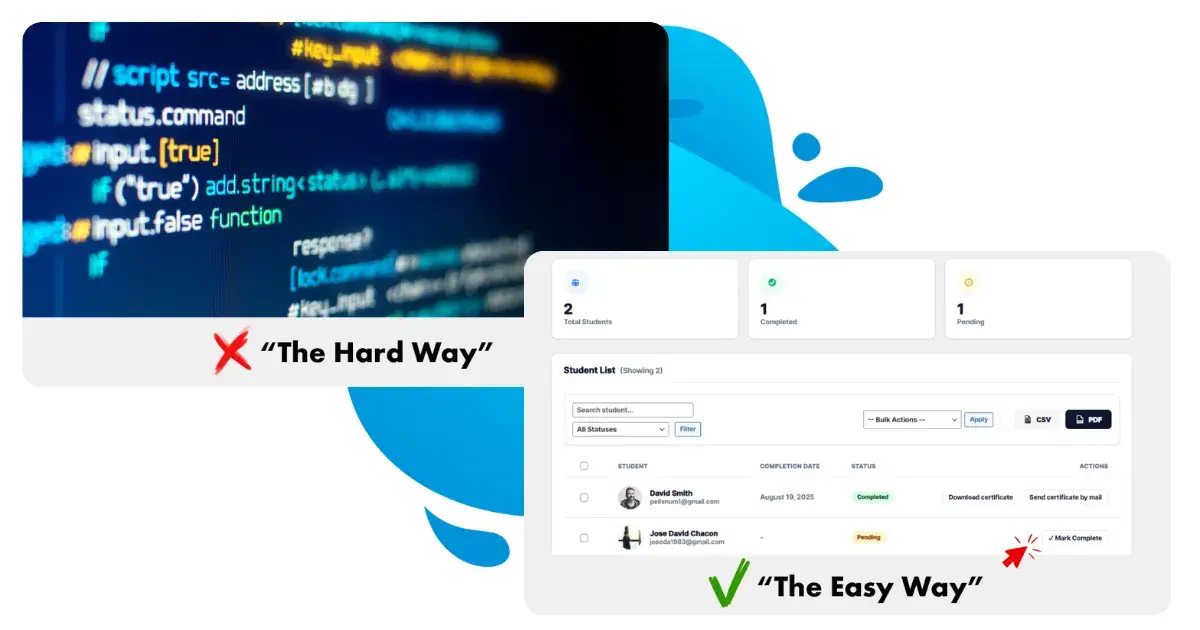
If you need to intervene manually, you typically have two “hard” options:
- User Switching: You have to install a plugin to “become” the student, log in as them, find the course, and click the button yourself. This is slow and invades user privacy.
- Database Editing: You have to go into phpMyAdmin, find the specific user ID and course ID tables, and manually change values. This is dangerous; one wrong click can break your site.
Luckily, there is a third option designed specifically for admins who value their time.
The Solution: How to Manually Complete Course in Tutor LMS with 1 Click
The easiest way to solve this is by using TLMS Power Tools. We developed this plugin specifically to fill the gaps in admin management that Tutor LMS left open.
Here is how you can mark a course as complete for any student in less than 10 seconds.
Step 1: Access Your Enrollments List
Once you have installed and activated TLMS Power Tools, navigate to your WordPress Dashboard:
- Go to TLMS Power Tools > Course Management.
Step 2: Locate the Student
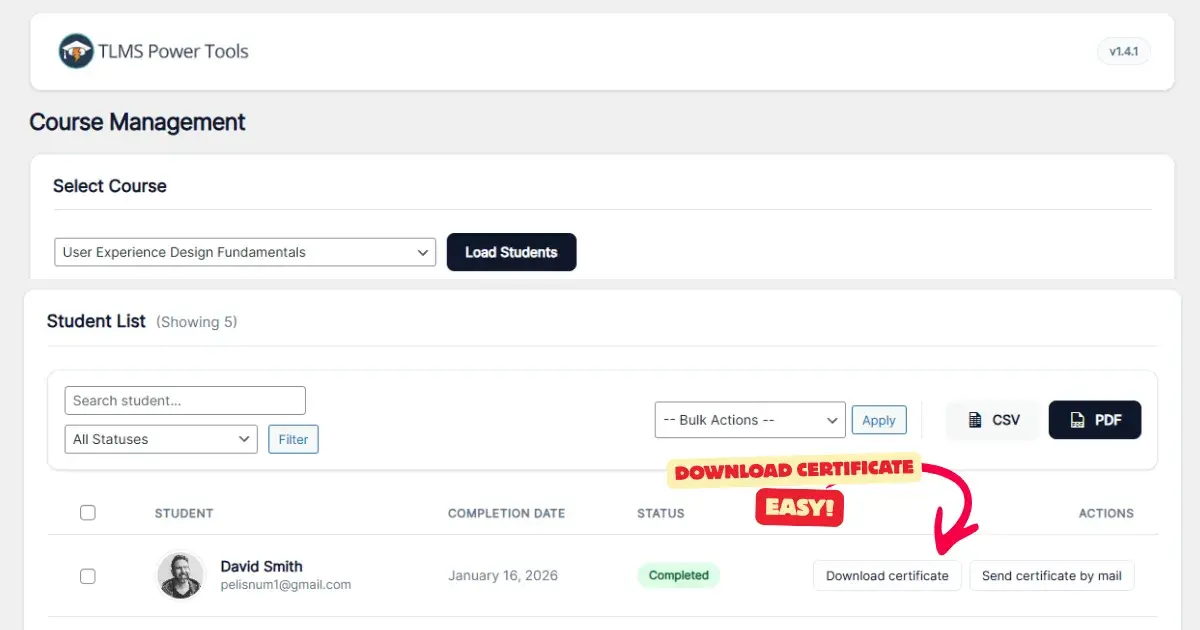
Next, select the course and then click on upload students. Find the student who is stuck. You will see the standard list with their name and their pending status.
Step 3: Click “Mark Complete”
TLMS Power Tools adds a new set of Admin Action buttons directly in this column.
Simply click the button labeled “Mark Complete”.
What Happens Next?
Instantly, the system will:
✅ Set the course status to “Completed”.
✅ Auto-generate the Certificate (if you have certificates enabled for that course).
✅ Send the completion email notification to the student.
Why This Matters for Your Academy
Speed: Solve support tickets in seconds, not minutes.
Safety: No need to touch the database or share passwords.
Control: Perfect for situations where you want to grant a certificate to a student manually (e.g., if they took an offline exam or received credit transfer).
Frequently Asked Questions:
Can I mark a course complete in Tutor LMS via the database? Yes, but it is risky. You would need to access phpMyAdmin, find the wp_tutor_quiz_attempts and course completion tables, and manually insert the user ID and course ID. One mistake can corrupt your student data. Using a plugin like TLMS Power Tools is much safer to manually complete course in Tutor LMS.
Does manually completing a course issue the certificate? If you use TLMS Power Tools, yes. When you click the complete button, the system triggers all completion events, including generating the PDF certificate and sending the email notification to the student.
Why is student progress stuck at 99%? This usually happens if a student forgets to click the “Finish Course” button inside the last lesson, or if there is a caching conflict. As an admin, you need a way to override this to manually complete course in Tutor LMS and close the ticket.
Conclusion
Don’t let a missing button slow down your admin workflow. While Tutor LMS handles the learning experience perfectly, TLMS Power Tools handles the management experience.
Once the course is marked complete, you might need to get the proof. Check our guide on How to Download Certificates as an Administrator in Tutor LMS.
Ready to take control of your LMS? Download TLMS Power Tools here and simplify your workflow today.