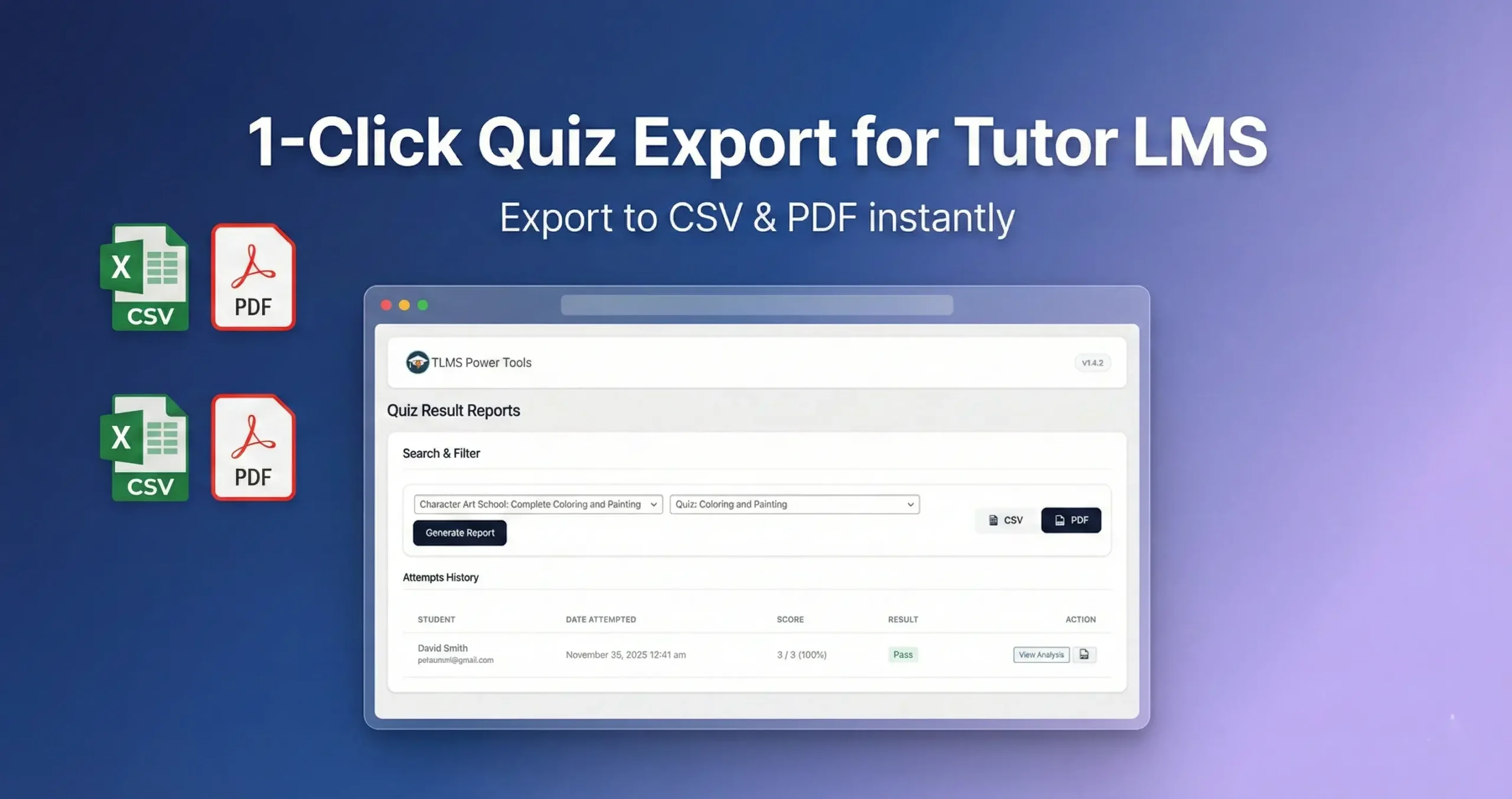
In this guide, you will learn exactly how to Export Quiz Results & Student Answers in Tutor LMS so you can analyze your students’ performance.
Running an online academy without data is like driving blindfolded. You know your students are taking quizzes, but if you can’t analyze their answers in Excel or share a report with your team, that data is useless.
A common frustration for Tutor LMS administrators is the reporting limitation. By default, you can see quiz attempts inside the dashboard, but how Export Quiz Results & Student Answers in Tutor LMS for deep analysis?
In this guide, we’ll show you exactly how to break your data free from the WordPress dashboard and get professional, shareable reports.
Quick Answer: Does Tutor LMS allow CSV export of quiz answers? By default, no. Tutor LMS provides on-screen statistics but lacks a native button to export detailed student answers or bulk results to Excel/CSV. To do this without writing SQL code, you need the Quiz Reports module in TLMS Power Tools.
The Problem: Data Locked in the Dashboard
Tutor LMS is a fantastic platform for learning, but its reporting features are designed for viewing, not processing.
As an admin, you likely face these scenarios:
- Grade Analysis: You need to see which specific question 50% of students are failing.
- External Reporting: Your boss or client wants a weekly PDF summary of student performance.
- Backup: You want a hard copy (Excel) of all student grades for safety.
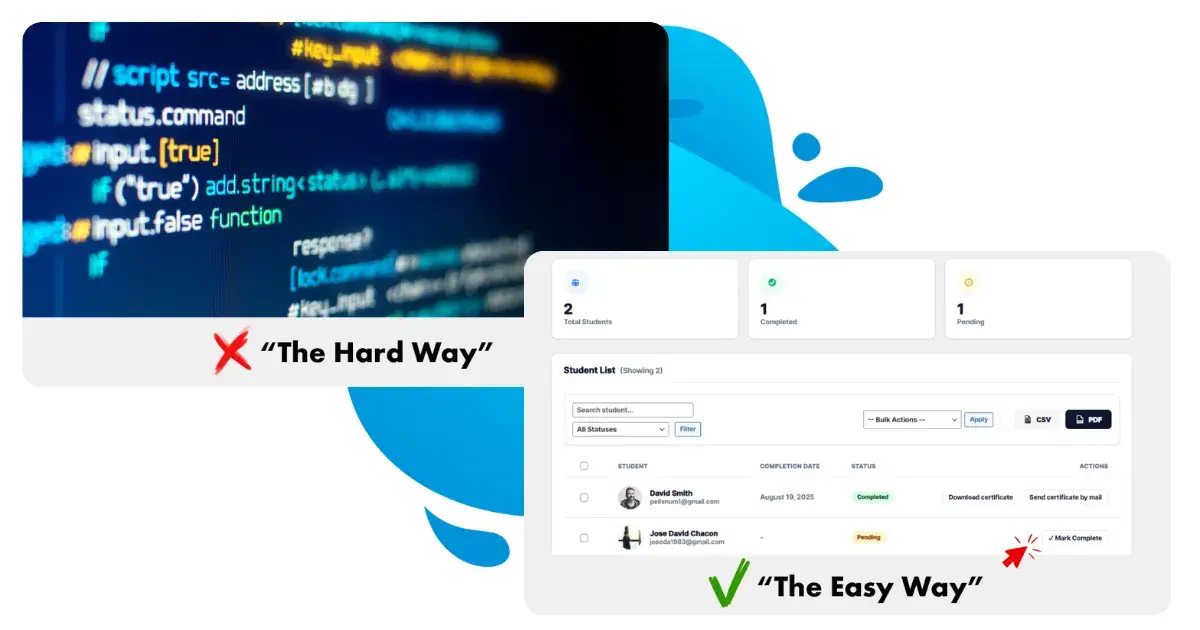
To get this data natively, you would have to open every single student attempt one by one and copy-paste the answers into a spreadsheet. If you have 100 students, that’s hours of wasted time.
How to Export Quiz Results & Student Answers in Tutor LMS
The TLMS Power Tools plugin was built to bridge this gap. It includes a dedicated “Reports & Export” engine that pulls all quiz data—including student names, dates, grades, and specific answers—into a clean, downloadable file.
Here is the step-by-step guide to exporting your data in seconds.
Step 1: Install the Reporting Addon
First, ensure you have TLMS Power Tools installed and active. This plugin connects directly to your Tutor LMS database safely to fetch the hidden data.
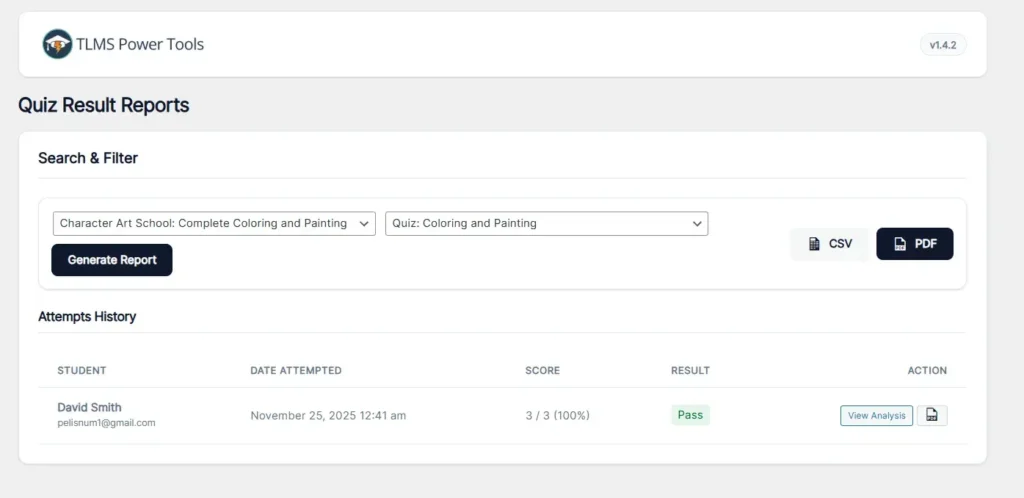
Step 2: Access the Quiz Reports Dashboard
Navigate to your WordPress Admin Panel:
- Go to TLMS Power Tools.
- Click on Reports.
- Select the Quiz Results tab.
Unlike the standard Tutor LMS menu, this interface is built specifically for data handling.
Step 3: Filter Your Data
You probably don’t want every quiz attempt from the beginning of time. Use the smart filters to find exactly what you need:
- Filter by Course: Select a specific course (e.g., “Biology 101”).
- Filter by Date: Choose a date range (e.g., “Last Month”).
- Filter by Student: Search for a specific user.
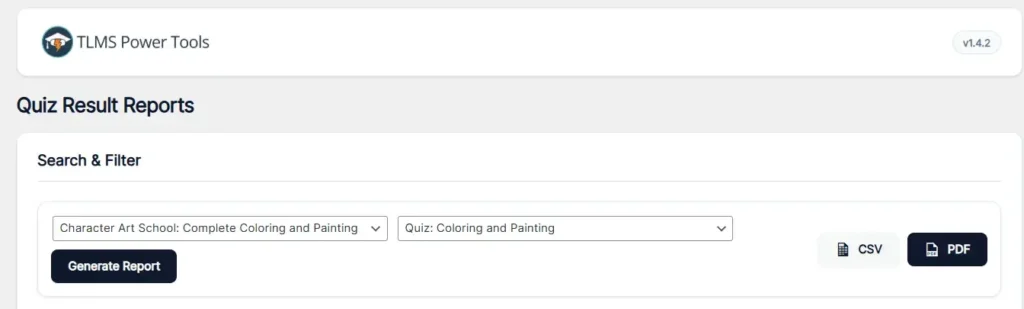
Step 4: Click “Export to CSV” (or PDF)
Once you have your list, look for the export buttons at the top right of the table.
- Export CSV: Perfect for Excel, Google Sheets, or importing into other CRM software. It contains raw data, columns for scores, time taken, and pass/fail status.
- Export PDF: Generates a professional-looking document ready to email to a manager or student.
Why You Need Detailed Quiz Exports?
Export Quiz Results & Student Answers in Tutor LMS isn’t just about convenience; it’s about improving your course content.
- Identify Weak Spots: If you export your data to Excel and notice that 80% of students answer “Question 5” incorrectly, you know you need to improve that lesson.
- Accreditation Proof: Many official certification bodies require physical or digital proof of student answers, not just a final grade. A PDF export serves as this legal proof.
- Bulk Grading: If you have essay questions, exporting answers allows you to grade offline without being logged into WordPress constantly.
Conclusion
Now that you know how to Export Quiz Results & Student Answers in Tutor LMS, you can easily back up your data and analyze student performance efficiently. Whether you choose CSV or PDF, keeping these records is vital for any academy.
Ready to get your data? Stop copy-pasting. Download TLMS Power Tools today and unlock the full power of your Tutor LMS reporting.