As a Tutor LMS administrator, you’ve probably encountered this awkward situation: How to download certificates as an administrator in Tutor LMS. The typical scenario is this: A student asks you to email them a copy of their certificate because they can’t find it, or you need to print a physical copy for a graduation ceremony.
You go to your WordPress dashboard, search for the student, and look for the “Download” button. But it’s not there.
In the default version of Tutor LMS, certificates are designed so that only the student can access them from their own dashboard. This presents administrators with a significant workflow problem: How to download certificates as an administrator in Tutor LMS without asking for their password?
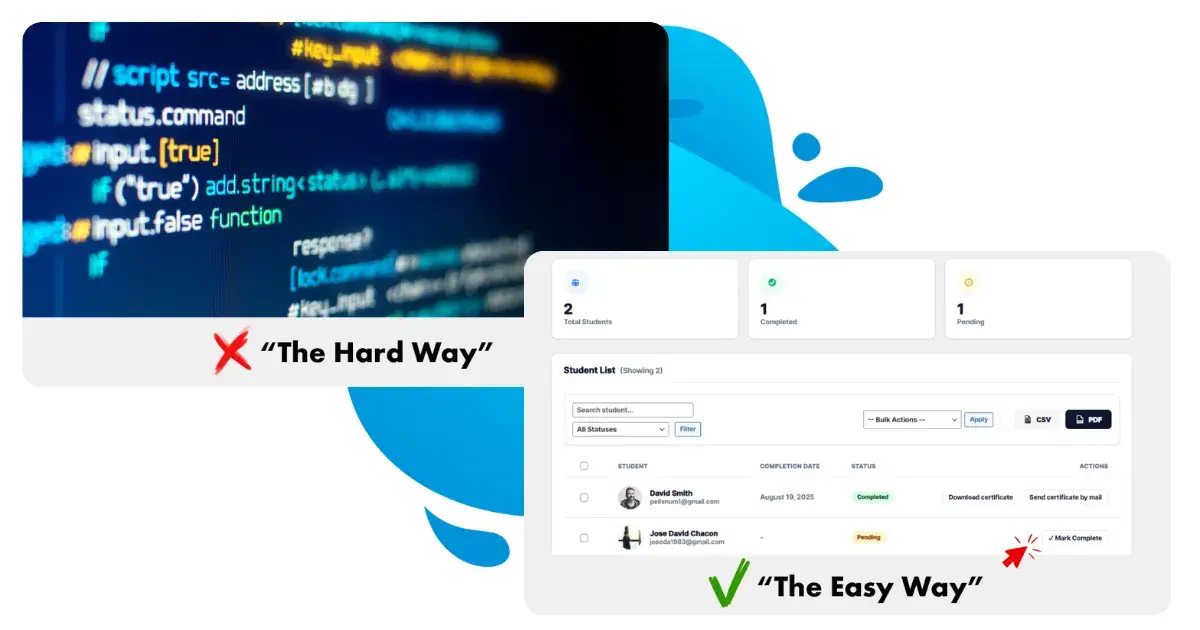
In this guide, we’ll show you the “hard” (default) way and the “smart” way (using a simple admin tool).
The problem: Certificates are hidden from administrators. Tutor LMS generates certificates dynamically using PHP. It verifies the ID of the logged-in user with the course completion data.
Due to this security check, if you (the administrator) try to view a certificate URL directly, you might see an “Access Denied” error or your own name on the certificate instead of the student’s.
This forces administrators to use slow workarounds:
Resetting the password: Changing the student’s password to log in with their name (terrible for privacy).
Using “Switch User”: Installing a plugin to temporarily swap identities with the student with the click of a button.
There needs to be a faster way to download student certificates as PDFs in Tutor LMS directly from the backend.
Note: In recent updates, Tutor LMS has implemented a new certificate download feature (which we applaud), but it’s very cumbersome to access (a point for improvement).
The solution: Administrator shortcut (TLMS Power Tools)
The most efficient method to avoid login swapping and download certificates more efficiently is to use TLMS Power Tools. We’ve added a specific feature that bypasses the user verification restriction for administrators, allowing you to instantly generate and download the PDF.
Next, we will show you how to download certificates as an administrator in Tutor LMS.
Quick Answer: Tutor LMS doesn’t allow admins to download certificates by default. To fix this, you can use the TLMS Power Tools plugin to add a “Download PDF” button directly in your admin panel, or use the “User Switching” plugin to log in as the student.
Here’s how to download certificates as an administrator in Tutor LMS:
✅ Step 1: Install the plugin
Make sure you have TLMS Power Tools installed and active on your website. This plugin unlocks hidden administrative features.
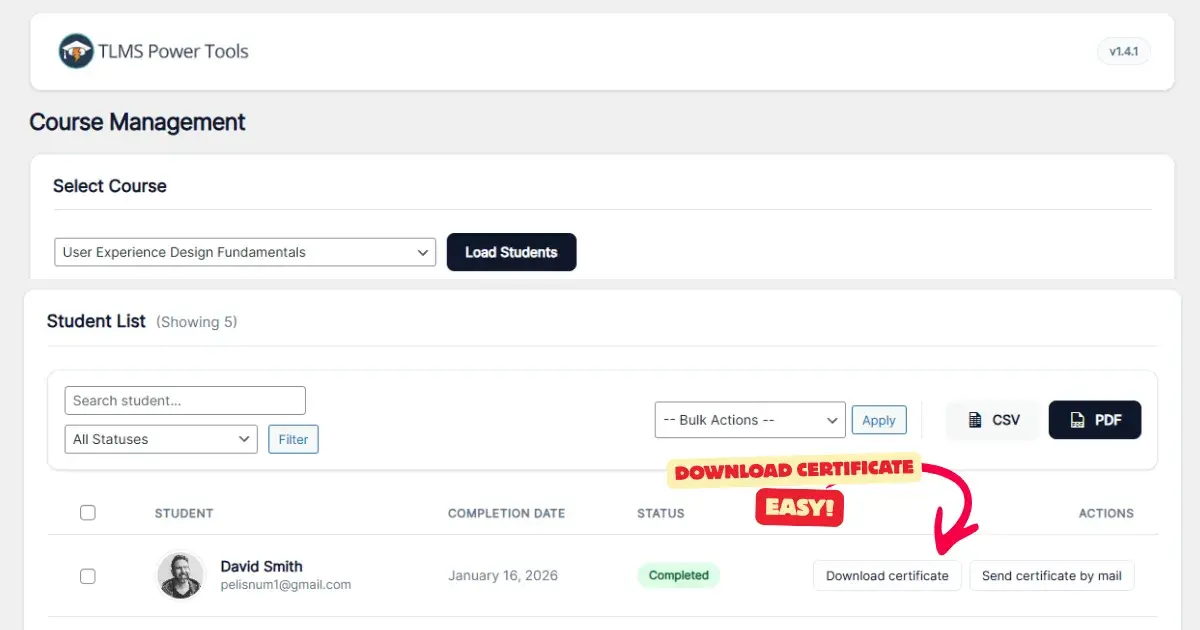
✅ Step 2: Go to TLMS Power Tools > Course Management in your WordPress dashboard.
Here you can filter by course, and then you’ll see a list of all students and their progress.
✅ Step 3: Click the Certificate Download Button
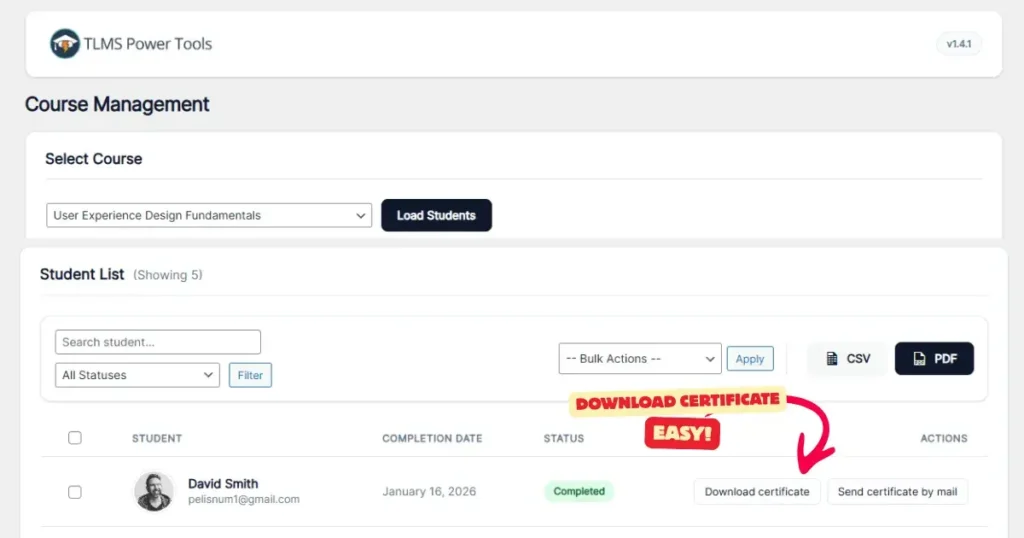
Look at the row of students. You’ll see a new “Download Certificate” button along with a button to send the certificate by email.
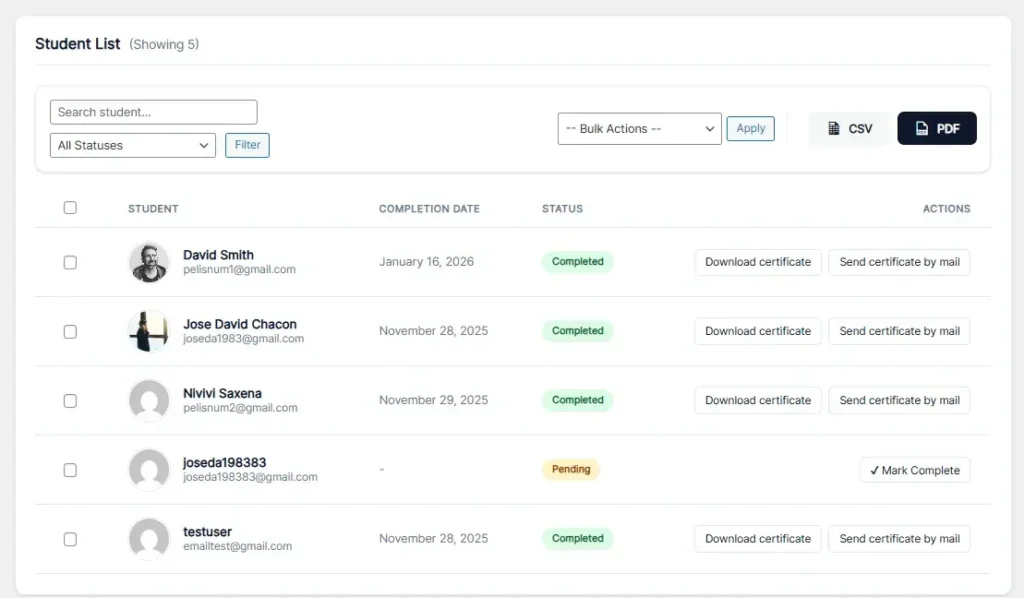
Click it.
Result
The system will instantly generate a link to the certificate with the student’s information, which you can then download to your computer.
✅ No need to log in as a student.
✅ No coding required.
✅ Ready to print or email immediately.
Why download access for administrators is essential.
How to download certificates as an administrator in Tutor LMS isn’t just a luxury; it’s essential for professional academies.
Offline verification: If you offer hybrid courses, you may need to print certificates for physical delivery.
Archiving: Some institutions require maintaining a local backup of issued diplomas to comply with legal regulations.
Support: If students experience technical difficulties downloading their files (e.g., on mobile devices), you can download and email them in seconds.
Frequently Asked Questions (FAQ)
Can I download certificates for students who haven’t finished? No. The student must have reached 100% progress, and the course status must be “Completed” for a certificate to exist. If you’re stuck at 99%, please refer to our guide on how to manually complete a course.
Does this work with the custom certificate generator? Yes. TLMS Power Tools works with the standard Tutor LMS certificate generator. Simply start the generation process with administrator privileges.
Why don’t I see the download button in the free version of Tutor LMS? Certificate generation is a feature of Tutor LMS Pro (or requires the Certificate add-on). Therefore, our tool requires the certificate system to be active in order to download student certificates as PDFs in Tutor LMS.
Conclusion
Stop wasting time switching user accounts just to get a simple file.
If you need to know how to download certificates as an administrator in Tutor LMS directly from your admin panel, get TLMS Power Tools today. It’s the ideal solution for efficient course management